
An SSH client for Mac that keeps the next step clear.
Connect to a server with a saved host, port, username and password or private key. All in Term combines a terminal session with the server's supporting files and tools, and gives connection failures an explanation that points to the relevant check. A failed login should remain understandable even after the underlying socket closes.
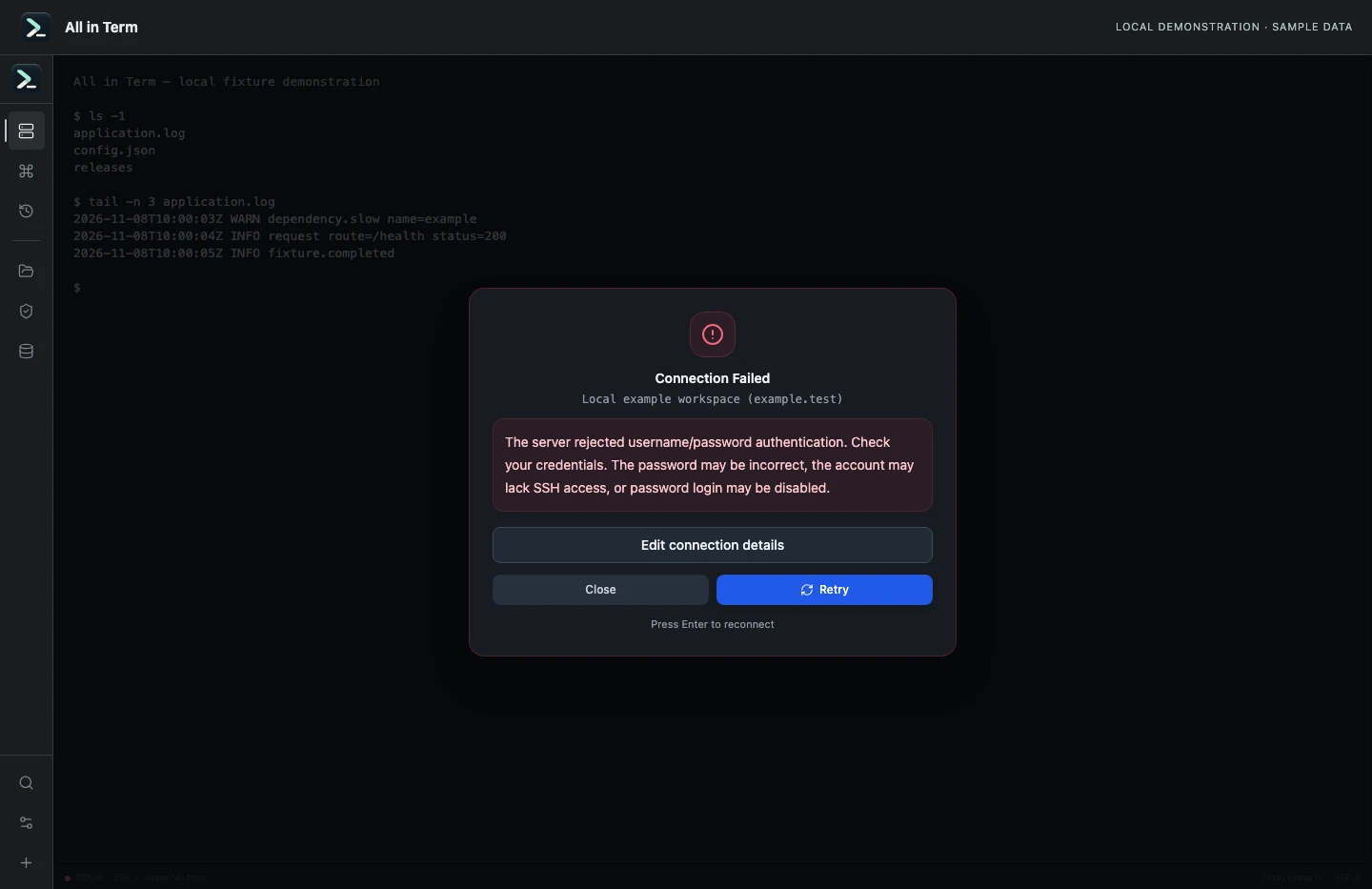
SSH error view with a synthetic authentication rejection. Captured 2026-11-08. Open the image to inspect details.
Saved profiles with clear identities
Give each host a recognizable name, group and color. Keep staging and production profiles distinct, review the configured port and choose the authentication method supplied for the intended account.
Passwords and private keys
Choose password authentication or select a supported private key, including its passphrase when required. The matching public key must already be authorized for the remote user. A key passphrase can differ from the account password.
A useful failure explanation
Distinguish hostname resolution, network reachability, refused connections, timeouts, unreadable keys and authentication rejection. If the server does not distinguish a wrong credential from an account policy restriction, the message preserves those possibilities rather than inventing certainty.
Separate login from terminal permission
An account can authenticate and still be refused an interactive shell or PTY. The error view describes that stage separately and offers an action to edit the saved connection. A successful connection still needs a hostname and account check before real work.
A practical first workflow
- Create a profile with the approved SSH endpoint, account and port.
- Select the intended password or private key, including its passphrase if needed.
- Connect and read the specific failure stage if the attempt is rejected.
- Confirm the remote hostname and user before inspecting or changing the server.
Know the current boundaries
- Connections currently use direct server profiles. Dedicated jump-host chains and a tunnel manager are future proposals.
- A dedicated host-trust review interface and interactive multi-step authentication are not claimed as shipped workflows.
- SFTP and remote tools use the access and capabilities available to the actual connected account.
Frequently asked questions
Which SSH authentication methods are available?
The profile form supports password and private-key authentication, with a passphrase for encrypted private keys.
Will the app always identify a wrong password exactly?
No. A server may use the same rejection for an incorrect username, a credential problem or an account policy. The app explains the supported possibilities and preserves the original failure category.
Why can an account authenticate but fail to open a terminal?
The server may restrict shell or PTY access. An account intended only for file transfer is one possible arrangement; review the actual server policy with its administrator.
Does the client manage SSH tunnels or bastions?
Those are clearly labeled future ideas. The current connection workflow uses direct host profiles.