
Why SSH will not connect: diagnose the failing stage before changing credentials
Separate network failures, authentication rejection and shell restrictions with a practical SSH troubleshooting decision process from your Mac.

An SSH failure is not one problem with one solution. A hostname can fail to resolve before a server is contacted. A reachable machine can refuse the requested port. A server can accept a network connection but reject authentication, or accept authentication and refuse an interactive terminal. Treating all of these as a wrong password wastes time and can encourage unrelated configuration changes. This guide follows a fictional staging connection through those stages, using the current All in Term error flow to explain a practical investigation. Examples are illustrative; the graphs describe invented support cases and planned attention, not product measurements or your server's behavior.
Capture the exact attempt and its context
Begin with the connection you intended to open: host, port, username and authentication method. Record the observation time and the network context, including any required VPN. A connection that works from one network may not be permitted from another. Also confirm whether you selected a saved staging profile or a similarly named production entry. These details describe the attempted operation before you interpret what failed.
In All in Term, keep the first reported failure visible rather than repeatedly retrying while changing several settings. The app now preserves the underlying failure when the socket subsequently closes. Read the explanation and decide which stage it describes. If you need help from an administrator, send a redacted account of the endpoint, method, time and error category. Do not include a private key, password or an entire saved profile containing secrets.
Read the connection as four separate checks.
- 01
Endpoint
Resolve and reach the intended host.
- 02
Identity
Use the approved server identity process.
- 03
Authenticate
Supply the intended account credential.
- 04
Terminal
Confirm shell and PTY access.
Conceptual workflow · follow each check before moving to the next step.
Check hostname resolution and the network path first
If the host cannot be resolved, replacing a password will not help. Review the spelling, whether the name is internal, and whether the expected network provides its DNS information. A public website name may point to a reverse proxy instead of the machine accepting SSH. Confirm the SSH endpoint with the person who operates it. Keep the distinction between the website visitors use and the management endpoint administrators access.
If the machine is unreachable or a connection times out, inspect the approved network path and port. A timeout is an observation about a response not arriving within the allowed time, not proof that the account is disabled. An administrator may need to compare firewall rules, a VPN route or service availability. Avoid opening a broad firewall exception as a generic experiment. Choose the next check because it can distinguish between the remaining explanations.
| Observed category | Check | Avoid assuming |
|---|---|---|
| Hostname resolution | Address, internal DNS and required VPN | The password was rejected |
| Connection refused | SSH endpoint, listener and port | The account is invalid |
| Authentication rejected | Username, credential and allowed method | A password is definitely wrong |
| Terminal setup denied | Account shell and PTY policy | Authentication never succeeded |
Locate the stage that rejected the connection.
The gates separate connection stages. A problem at one stage should guide a focused check rather than trigger changes to every setting.
Read the stage
Name the endpoint, method and observation before selecting a corrective action.
Preserve uncertainty
Rejected authentication can reflect a wrong credential, the chosen account or the server's access policy.
Distinguish a refused port from rejected authentication
A refused connection generally points to the destination and service endpoint rather than the account password. Confirm the port configured for SSH and whether the service is listening there. The port may be intentionally different from the common default. Check the same host and network context used by the failing client so a successful test against another address does not become misleading reassurance.
Authentication rejection happens later. The server may reject a wrong username or credential, an unauthorized key, or a method its policy does not allow. These can produce the same general authentication failure from the client's perspective. All in Term explains the relevant possibilities instead of asserting that a password is definitely wrong. Preserve that uncertainty when reporting the result. The server's authorized logs and account configuration may be needed to determine the specific cause.

The credential is only one part of the connection.
Network access, the intended identity and post-login capabilities require their own evidence.
Concept illustration, not an application screenshot.Inspect the selected credential without exposing it
For password authentication, check the remote username and the password intended for that account. A hosting dashboard login is not automatically an SSH credential. For key authentication, select the private key and confirm that its matching public key is authorized for the same account. If the key is encrypted, its passphrase is a separate secret from the server account password. The app distinguishes missing, unreadable and locked key cases from server-side rejection.
Do not copy sensitive credential material into an error report to prove what you selected. Use a harmless key filename or an approved public fingerprint record when the team needs to compare identities. If the server identity changes unexpectedly, follow the organization's verification process before proceeding. A dedicated host-trust management interface is a future product idea described in the product notes, so do not assume the current UI supplies a complete trust-review workflow.
Categories in 100 invented support cases
Unit: fictional cases. Synthetic example values, not production measurements.
Bars start at zero and share the same linear scale. Exact values are printed alongside each bar.
Recognize an account that authenticates without terminal access
Some accounts are intentionally restricted to a particular operation, such as file transfer. Successful authentication therefore does not guarantee that the server will open a shell or allocate a terminal. When terminal setup is denied after authentication, review the account's allowed capabilities with the administrator. Repeatedly replacing an accepted credential addresses the wrong part of the connection and can obscure the actual account policy.
All in Term gives shell and PTY restrictions a separate explanation in this situation. Use that information to ask a precise question: should this account have interactive terminal access? If the intended answer is no, use the approved access method for the task. If the answer is yes, an administrator can review the account and service configuration. The illustration below separates the accepted identity from the capabilities available after login.
Edit one relevant field and retry deliberately
The connection error screen provides an edit action so that a known correction can be made without recreating the profile. Change only the field supported by the evidence. For example, correct a confirmed port or select the intended private key. Record what changed before retrying. A successful second attempt is easier to understand when the difference between the two attempts is explicit.
After connecting, confirm the hostname, current user and working directory before doing any real work. A corrected hostname could lead to a different valid machine, so successful authentication is not the final identity check. If the retry fails differently, treat the new category as fresh evidence about the connection stages. Do not erase the earlier observation; it may explain which problem has been resolved and which one remains.

Successful authentication does not guarantee a terminal.
The split illustrates that a server can accept an identity while restricting interactive shell access. The illustration does not represent a particular server policy.
Account capabilities
An SFTP-only account may authenticate without being allowed a terminal.
Choose the relevant check
Inspect shell/PTY permissions with the administrator instead of repeatedly replacing a valid credential.
Keep a diagnostic note that another operator can follow
Finish with the endpoint, account, method, error category and corrective action, keeping secrets out of the record. If the cause remains unknown, say which possibilities were tested and what evidence is still needed. This is more useful than a generic statement that SSH is broken. It also prevents a later operator from repeating the same password changes while a network restriction remains unresolved.
For recurring environments, give saved profiles clear names and maintain an appropriate access review process. All in Term's diagnostic messages support the investigation by preserving the cause and offering a useful next step. They cannot make a remote server reveal a distinction it does not report. A good troubleshooting routine respects that boundary: identify the stage, narrow the possibilities, change one justified detail and verify the resulting session before continuing.
Inside the application: a scoped local example
This capture uses the shipped UI component in an isolated renderer. The host, files and service data are demonstrations, not a production session. It illustrates the surrounding workflow; it does not verify every service-specific command in this guide.
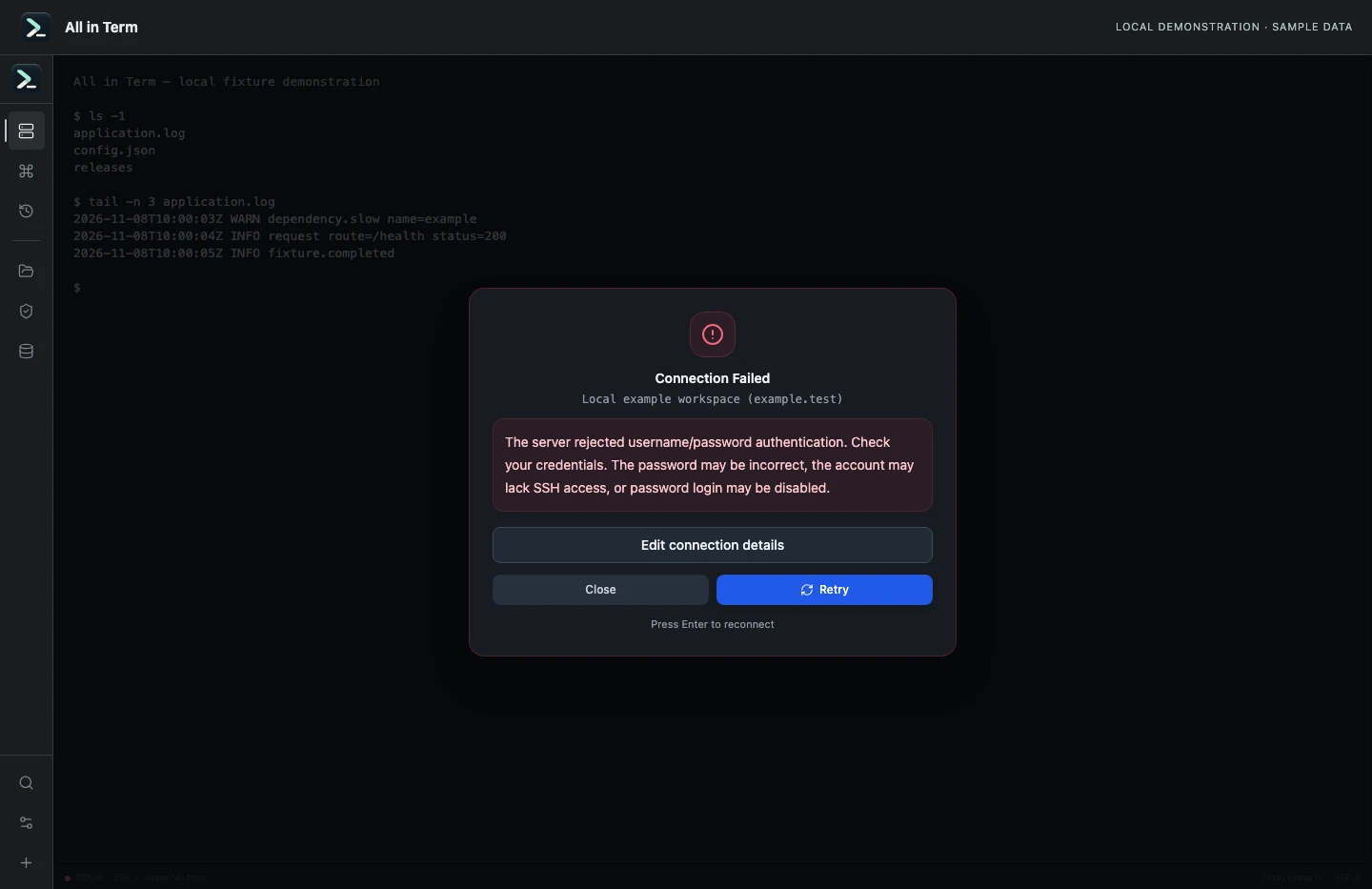
SSH error view with a synthetic authentication rejection. Captured 2026-11-08. Open the image to inspect details.
Check the application’s error classification
Executed the current sshFailureMessage and userError functions with explicit synthetic authentication and shell-denial errors. This is not a live login attempt.
Executed check
Authentication rejection → userError
Post-authentication shell denial → userError
Recorded output
The server rejected username/password authentication. Check your credentials. The password may be incorrect, the account may lack SSH access, or password login may be disabled.

SSH authentication succeeded, but the server did not allow an interactive terminal. Check shell/PTY permissions; the account may be restricted to SFTP.
Recorded 2026-11-08. Executed locally against synthetic fixtures. No production host or database was contacted. Read the recorded checks.
An illustrative diagnostic time budget
Unit: planned minutes. Synthetic example values, not production measurements.
Bars start at zero and share the same linear scale. Exact values are printed alongside each bar.
A small command example
Read the comments, confirm the active host and adapt any example names to your environment before running commands.
# After a successful connection, confirm the session context
hostname
whoami
pwd
Further reading
Official documentation for the underlying tools. The workflows and synthetic examples above are editorial guidance, not performance claims.