
SSH and SFTP on Mac: a practical guide to connections, keys and files
Understand connection details, private keys, host identity and reliable file transfers in a Mac server workspace.

An SSH connection and an SFTP transfer often appear in the same task, but they solve different parts of it. SSH gives you an authenticated session on a remote machine. SFTP provides a structured way to work with remote files over an SSH connection. Understanding the boundary helps you diagnose problems without changing unrelated settings. This guide follows the setup of a staging server connection, explains which details belong to authentication, and shows how to move a configuration file with a clear destination and a verification step. The example hostnames, paths and numbers are illustrative and should be replaced with values from your own environment.
Collect the connection details before opening the form
A useful connection record includes a recognizable name, a hostname or IP address, an SSH port and a username. These values describe the endpoint and account. Authentication then proves that you may use that account. Ask your provider or administrator for the SSH details specifically, because a hosting control panel account may have a different username, password or login method. A website domain can also point to a proxy rather than the machine that accepts SSH.
Create a staging connection first when one is available. Use a name such as staging-web and add a group or color that distinguishes it from production. In All in Term, the server form supports password and private-key authentication. Check every field before saving, then connect and confirm the remote hostname. A correctly saved profile makes future work easier, but the visible identity of the active session remains the final check before an operation.
Follow the connection, then the file.
- 01
Your Mac
Choose the endpoint and account.
- 02
SSH service
Check host identity and authenticate.
- 03
Remote session
Confirm the host and working path.
- 04
SFTP files
Transfer to a reviewed destination.
Conceptual workflow · follow each check before moving to the next step.
Understand what a key pair does
A public key can be placed on the destination server for the appropriate account. Its matching private key remains with the person or system authenticating. When selecting a key file in a client, choose the private key rather than the file ending in .pub. A passphrase can protect the private key at rest, and the client may request it when using that key. Do not paste the private key into support messages, issue descriptions or shared command snippets.
Existing organizational access policies should guide how you create and store keys. If you generate a new key for a personal test environment, use a distinct filename so that you do not overwrite an existing identity. Make sure the corresponding public key is installed for the exact remote username you intend to use. A valid key authorized for one account does not automatically authenticate another account on the same server. Key choice and account choice must agree.
| Symptom | Likely stage | Check next |
|---|---|---|
| Connection timed out | Network path | Address, VPN, firewall and port |
| Connection refused | Service endpoint | SSH listener and configured port |
| Authentication failed | Account access | Username, private key, password policy |
| Upload permission denied | Filesystem access | Destination ownership and permissions |
Understand the two sides of key authentication.
The paired shapes illustrate the relationship between a private key kept by the client and a public key authorized for a remote account. They do not depict the cryptographic exchange literally.
Keep the private key private
Select the private-key file in the client. Do not publish it or paste it into an issue, chat or support ticket.
Authorize the correct account
The corresponding public key must be authorized for the intended server user. Host identity remains a separate check.
Treat host identity as a separate question
User authentication asks whether you may access the server. Host verification asks whether you are talking to the expected server. These are separate checks. When an SSH client presents a host fingerprint, compare it with a trusted record supplied through an independent channel. If a known server's identity changes unexpectedly, investigate the cause. A rebuilt host can legitimately have a different key, but the warning itself does not tell you that the change is legitimate.
Do not resolve an unexplained identity problem by blindly removing every saved host record. Determine which host changed, whether the destination address is correct and whether an administrator performed a rebuild. Your workflow should preserve the distinction between an expected infrastructure change and a surprising connection. The specific verification interface depends on the client, so follow the behavior presented by your installed version and your team's established policy rather than assuming every SSH application handles the prompt identically.

Two keys. Different responsibilities.
The public key is authorized on the destination account. The private key stays with the client and must remain confidential.
Concept illustration, not an application screenshot.Diagnose failures by where they happen
A timeout, a refused connection and an authentication failure describe different stages. A timeout can mean the destination is unreachable or a network control is dropping traffic. A refusal commonly indicates that the destination is reachable but no service is accepting the requested connection. An authentication failure means you reached an SSH service but the supplied account or credentials were not accepted. These distinctions suggest different next questions instead of one generic reset procedure.
Check the address and port before replacing keys. Check the username and authentication method before changing firewall rules. If a server requires a VPN, establish that network path first. Keep notes about the exact message and the time of the attempt. This gives an administrator something concrete to compare with server logs. Repeatedly guessing passwords or changing several settings at once can obscure the original problem and may trigger account protection mechanisms.
File categories in a fictional upload queue
Unit: MiB. Synthetic example values, not production measurements.
Bars start at zero and share the same linear scale. Exact values are printed alongside each bar.
Plan the file transfer as its own operation
Once the SSH session is connected, open the SFTP workspace and confirm the remote directory. A transfer needs a source, a destination and an intended result. For example, you may want to upload a reviewed configuration into a staging folder, not immediately replace the active service configuration. Write down the destination path and check the remote user's permissions. An upload that succeeds in the wrong directory is still an unsuccessful task.
For an existing file, compare versions and make an appropriate backup before overwriting. Watch the transfer result, then inspect the remote file size or contents as needed. If a service must load the changed file, use that service's validation procedure before activation. The chart below shows a fictional transfer queue by file category. It illustrates why checking the largest group first can help explain progress; it is not a speed test or an All in Term benchmark.
Use the remote editor with a review habit
Opening a file in a remote editor removes the need to download, edit and upload it manually, but it does not remove the need to understand the change. Check the full path and the connected host before typing. Read enough surrounding content to understand the configuration structure. Keep edits narrow, particularly when the file controls a running service. A syntax-aware editor can make text easier to read without proving that the application will accept the resulting configuration.
After saving, confirm the result and run the relevant validation command when your environment provides one. For Nginx, a configuration test belongs before a reload. For application data files, the correct check depends on the program that reads them. Avoid treating a saved editor tab as the final outcome. The useful sequence is review the difference, save the intended file, validate it and then confirm the dependent service behaves as expected.

A transfer has a source, a destination and a result.
The conduit represents a file-transfer connection; the receiving folder represents the selected destination path. This is an illustration, not a transfer progress display.
Check the destination
A successful upload into the wrong directory does not accomplish the intended task. Confirm the host and remote path.
Inspect the result
Check completion and the resulting file. If a service consumes it, perform the relevant validation before activation.
Leave access easier to maintain
Review saved connections periodically. Remove obsolete endpoints, rename ambiguous profiles and make production destinations easy to distinguish. Follow your organization's process for revoking keys when a device or team member no longer needs access. If a private key may have been exposed, replacing the local file alone does not revoke the corresponding authorization on every server. Access management involves the destination accounts as well as the client workspace.
A reliable SSH and SFTP routine is mostly a sequence of small identity checks. Confirm the endpoint, authenticate the intended user, verify the destination path and inspect the result. All in Term keeps the terminal, file explorer and editor within the active server context, which can reduce navigation. Use that convenience to spend more attention on the meaning of the operation. The goal is a connection and transfer process that another person could understand and repeat.
Inside the application: a scoped local example
This capture uses the shipped UI component in an isolated renderer. The host, files and service data are demonstrations, not a production session. It illustrates the surrounding workflow; it does not verify every service-specific command in this guide.
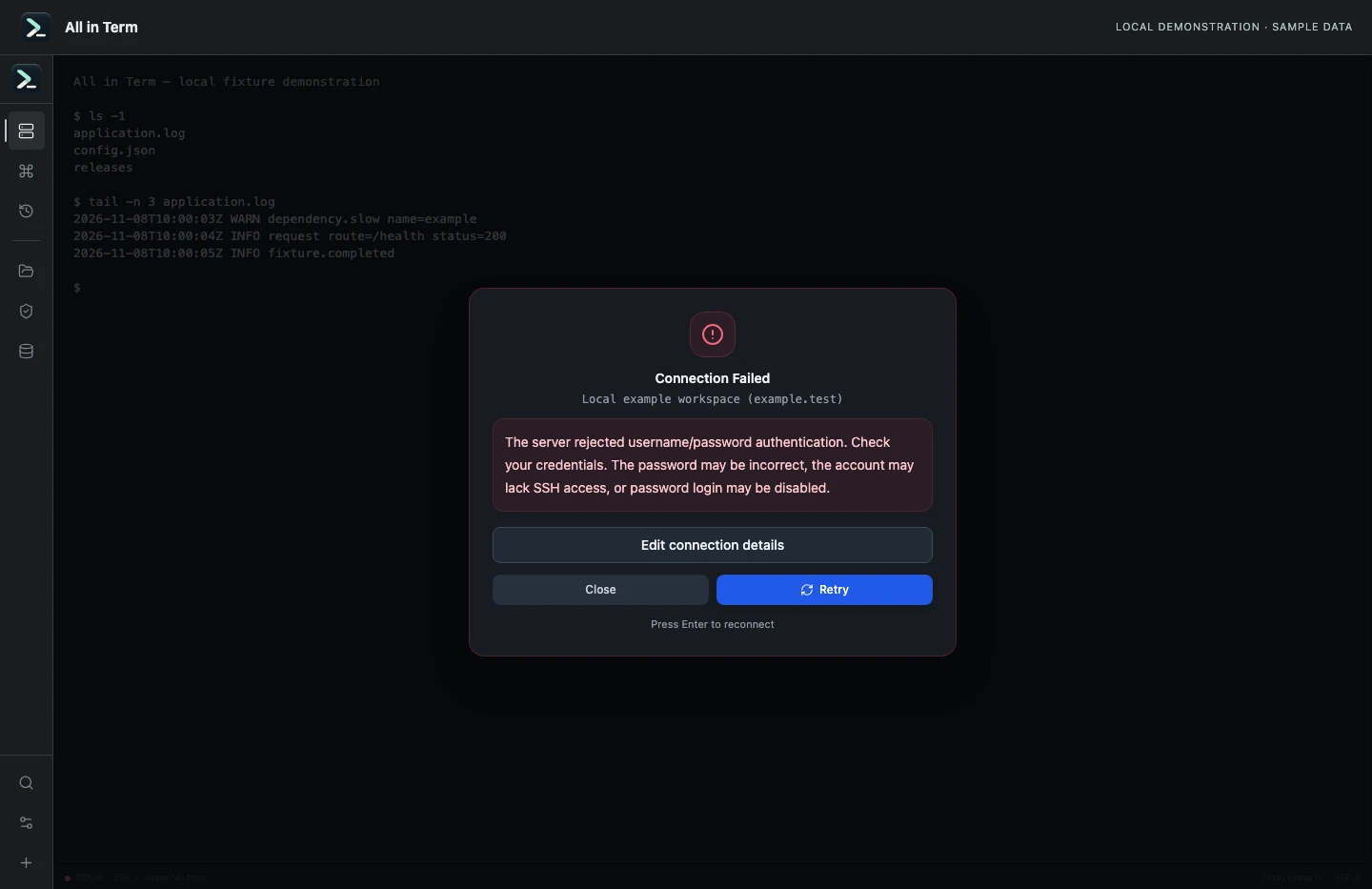
SSH error view with a synthetic authentication rejection. Captured 2026-11-08. Open the image to inspect details.
Check the application’s error classification
Executed the current sshFailureMessage and userError functions with explicit synthetic authentication and shell-denial errors. This is not a live login attempt.
Executed check
Authentication rejection → userError
Post-authentication shell denial → userError
Recorded output
The server rejected username/password authentication. Check your credentials. The password may be incorrect, the account may lack SSH access, or password login may be disabled.

SSH authentication succeeded, but the server did not allow an interactive terminal. Check shell/PTY permissions; the account may be restricted to SFTP.
Recorded 2026-11-08. Executed locally against synthetic fixtures. No production host or database was contacted. Read the recorded checks.
A small command example
Read the comments, confirm the active host and adapt any example names to your environment before running commands.
# Read-only checks after opening the remote session
whoami
hostname
pwd
ls -ld .
Further reading
Official documentation for the underlying tools. The workflows and synthetic examples above are editorial guidance, not performance claims.