
Organize remote files with server-specific favorites and deliberate path context
Use favorite directories, terminal-follow mode and scoped search to navigate remote files while keeping server identity and transfer destinations explicit.
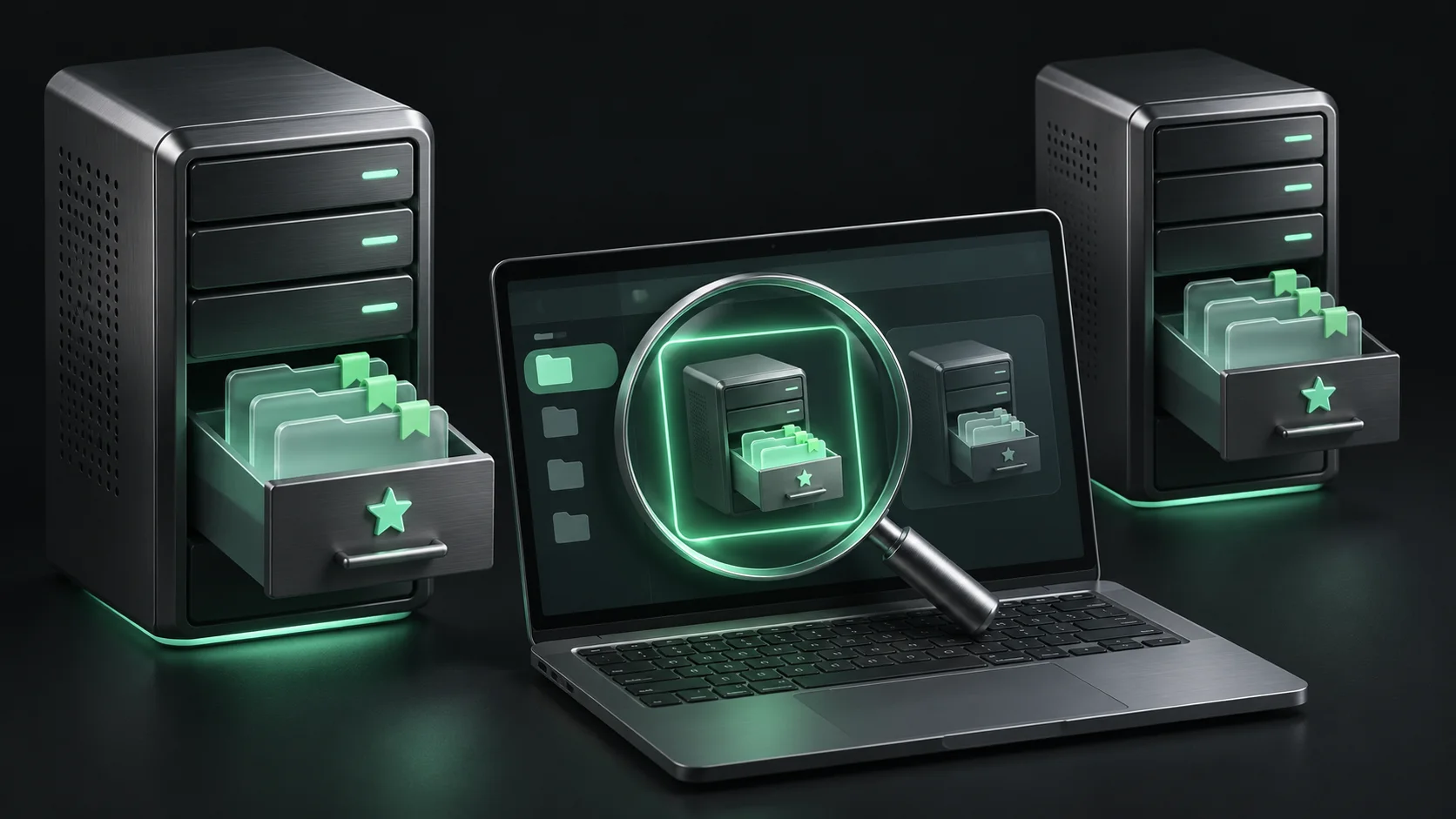
The hardest part of a routine file operation is often not transferring the bytes. It is knowing which machine and directory will receive them. Similar staging and production layouts, several home folders and a terminal that moves independently from the file browser can make a familiar action ambiguous. A few carefully chosen favorite paths and an explicit navigation mode reduce that ambiguity. This guide develops a remote file workflow around All in Term's server-specific favorites, SFTP browsing and terminal-follow option. The examples use fictional directories, and the charts describe invented planning data rather than measured productivity or transfer performance.
Make the host part of the destination
A useful destination is more than a path string. It includes the active server, the connected account and the intended directory. Two hosts can both contain an application folder while serving completely different environments. Before an upload, move or deletion, check the active connection label and the full destination. A saved favorite improves navigation speed, but it is not an exemption from that identity check.
Give saved servers names that explain their role. In All in Term, favorite paths belong to the saved server rather than a shared global list. This keeps frequently used staging and production locations separate. It also means that a path's meaning should be reviewed when an existing server profile changes purpose. A folder that was appropriate before a migration may still exist while no longer being the right operating destination.
A destination includes more than a directory name.
- 01
Host
Confirm the active environment.
- 02
Mode
Choose follow or independent browsing.
- 03
Path
Inspect the selected destination.
- 04
Result
Verify the file and its consumer.
Conceptual workflow · follow each check before moving to the next step.
Choose a small set of meaningful favorite folders
Start with the directories involved in frequent tasks: an application location, an appropriate log directory and a controlled upload area. Avoid saving every folder you visit, because a long list can recreate the search problem it was meant to solve. A useful favorite has an understandable purpose and a known owner. Review permissions before treating it as a place where changes should be made.
The SFTP workspace lets you star directories and drag folders into its favorites area. Use those actions to capture locations you have already inspected. For a shared operating convention, document which paths are intended for releases and which are for observation only. The first chart illustrates a fictional set of navigation tasks across a working session. Its counts are not measured time savings; they simply show which repeated visits might justify a favorite.
| Task | Useful mode | Check before action |
|---|---|---|
| Inspect the current shell directory | Terminal-follow | The path after the shell moves |
| Read logs while shell stays in the app folder | Independent browsing | Both visible directory contexts |
| Revisit a known operating directory | Server-specific favorite | Host identity and destination purpose |
| Locate a file in an unfamiliar tree | Scoped subfolder search | Search root and each result's location |
Keep useful paths attached to the right server.
Separate drawers represent server-specific favorite paths. Similar folder names on different hosts still point to different environments.
Bookmark intent
Save a small set of operationally meaningful paths for each host.
Verify the target
Check the active connection and directory before any upload, move or deletion.
Choose whether the file browser follows the terminal
Terminal-follow mode is useful when shell work and file inspection should refer to the same directory. After changing location in the shell, the file view can stay aligned with that context. This reduces the need to navigate twice, but it also makes the relationship worth noticing: a shell directory change can change the location you see in the explorer. Check the resulting path before selecting an operation.
Independent browsing is useful when you want to inspect logs while keeping the terminal in the application directory. In that mode, the two views deliberately refer to different locations. Treat their paths as separate pieces of context rather than assuming they remain synchronized. All in Term provides the mode choice; the operator decides which relationship fits the current question. The illustration below represents the link as removable to make that choice visible.

A difference is something to review.
A file that is new, changed or only present remotely needs a decision based on its purpose, not an automatic overwrite rule.
Concept illustration, not an application screenshot.Search the smallest scope that can answer the question
A directory-level filter and a search into subfolders have different scopes. Use a narrow directory when you know where the relevant files belong. Expand into subfolders when the task requires discovery, and read the grouped locations before opening a result. A familiar filename can appear under an archive, an old release and the active application tree. The result's directory is part of its meaning.
Large recursive searches can involve considerable remote work and may be limited by access permissions or the tool's result bounds. Do not treat an empty or partial result as a complete inventory of the server. Note the search root and any reported limitation when sharing a conclusion. If the question concerns a specific service configuration, ask the service's actual configuration context rather than assuming a filename search identifies the active version.
Repeated navigation in a fictional work session
Unit: directory visits in example. Synthetic example values, not production measurements.
Bars start at zero and share the same linear scale. Exact values are printed alongside each bar.
Review file differences before replacing existing content
Once the destination is clear, inspect the existing content and the intended change. For a folder update, use local-to-remote comparison to identify additions and modifications. Review deletions separately rather than hiding them inside a broad synchronization assumption. A file that exists only on the server may be generated data or an environment-specific configuration, not something that should automatically disappear.
Use a suitable backup and recovery process before replacing important files. Keep the operation narrow enough that its result can be inspected. After a transfer, confirm the actual destination and the file contents or other appropriate integrity evidence. A completed transfer does not establish that the application is using the new file. Validation of the consuming service belongs in the following step, particularly when the change affects a live configuration.
Treat permissions as a property of the actual channel
The account used by SFTP matters even when the terminal has changed its effective user through another command. An elevated interactive shell does not automatically turn a separate file-transfer channel into the same privileged session. If a write fails, inspect the connected account and destination permissions. Do not assume that the password must be wrong simply because the file explorer cannot access a privileged path.
Follow the organization's approved approach for administrative file operations. That might involve a writable staging location and a controlled service-side step, or another explicitly authorized access arrangement. Avoid granting broad privileges just to make one drag-and-drop action convenient. In All in Term, connection and permission guidance can help identify the boundary, while the server's account policy determines what the operation is allowed to do.

Choose when navigation follows the terminal.
The removable link represents terminal-follow mode. Independent browsing gives the file view its own location, so its destination must remain explicit.
Follow mode
Useful when shell work and file inspection should stay in the same directory.
Independent mode
Useful for checking another path while keeping the terminal where it is; review both contexts before acting.
Leave navigation easier for the next task
At the end of a file operation, keep only the favorites that remain useful and review temporary destinations. Record the active path and validation result in the normal change record when the task affects a service. If terminal-follow mode was changed for an investigation, notice its state before starting another task. A mode that was useful five minutes ago may be surprising during a different operation.
A good remote file workflow makes the destination explicit without adding excessive ceremony. Favorites reduce repeated navigation, search helps find the relevant tree and comparison makes a change visible before transfer. These conveniences work best when they preserve server identity and path context. Use All in Term's connected views to keep those facts close, then finish with evidence that the intended file and the service using it are in the expected state.
Inside the application: a scoped local example
This capture uses the shipped UI component in an isolated renderer. The host, files and service data are demonstrations, not a production session. It illustrates the surrounding workflow; it does not verify every service-specific command in this guide.
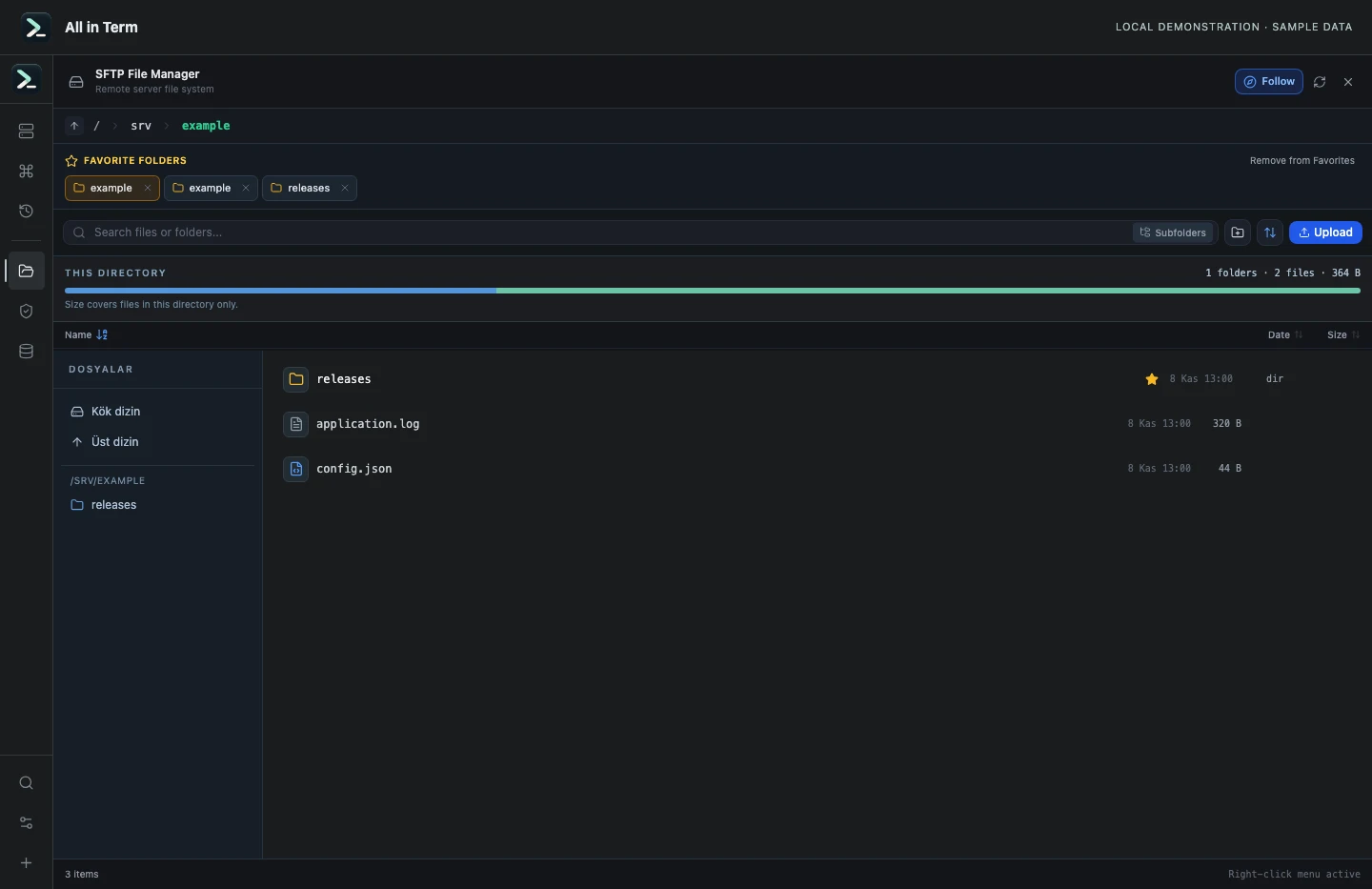
SFTP component with a synthetic remote directory based on temporary local files. Captured 2026-11-08. Open the image to inspect details.
List an isolated example directory
Executed /bin/ls against a newly created temporary directory.
Executed check
ls -1Recorded output
application.log
config.json
releases
Recorded 2026-11-08. Executed locally against synthetic fixtures. No production host or database was contacted. Read the recorded checks.
A fictional file review before a small update
Unit: files reviewed. Synthetic example values, not production measurements.
Bars start at zero and share the same linear scale. Exact values are printed alongside each bar.
A small command example
Read the comments, confirm the active host and adapt any example names to your environment before running commands.
# In the intended remote session, inspect the context
hostname
whoami
pwd
# Replace with an actual approved destination
ls -ld /srv/example/releases
Further reading
Official documentation for the underlying tools. The workflows and synthetic examples above are editorial guidance, not performance claims.