
Fix SSH Permission Denied (publickey) on Mac
Troubleshoot SSH publickey errors on Mac by checking the account, offered key and remote authorization. Includes verbose commands and a decision table.

An SSH client can reach a server and still fail to log in. The publickey message places the problem near authentication, after the client has made contact. Work through the username, selected identity and server authorization in order. The examples use a staging host and assume you have a trusted copy of its fingerprint. Keep an existing administrative session available if you are responsible for changing access.
Confirm the destination and account
Read the command as four separate choices: endpoint, port, username and identity. A correct key under the wrong account usually has no useful effect. The account might be deploy on a staging machine and a different name on production. If the connection uses an alias, inspect the resolved options with ssh -G. Check the hostname, user, port and identity files before opening a session. A wildcard rule elsewhere in the configuration can quietly affect a specific host.
A trace can contain hostnames, account names, key fingerprints and filesystem paths. Keep the full capture in a location appropriate for that environment, then extract just the lines necessary to explain the failure. A teammate can compare two attempts more easily when they have the timestamps and selected identity for both. If a ticket includes a pasted command, replace the internal host with a placeholder and preserve the option order so the example remains understandable.
Choose a check for the task
- 01
Wrong account
Correct the alias or username
- 02
Key not offered
Review IdentityFile and the agent
- 03
Key rejected
Check authorization for that account
Conceptual workflow · follow each check before moving to the next step.
Inspect which key the client offers
Run a single verbose attempt with the intended private key. In the trace, look for the offering and acceptance messages around public-key authentication. If the key never appears, inspect the path, permissions and any local agent settings. If the server receives the intended key and rejects it, check authorization for that remote account. Agent keys can interfere with a poorly scoped test, so the example explicitly selects an identity and limits additional agent identities.
When the client falls back to a password prompt, stop and confirm whether password authentication is expected. Completing one login with an alternate method may hide the original key problem. If the key is stored on a hardware device or managed by an agent, use the enrollment procedure for that system rather than creating a new file at the same path. Some agents expose several credentials and require confirmation to sign. The trace and your enrollment record together are better evidence than a filename alone.
| Option or symptom | What to look for | Where to start |
|---|---|---|
| Wrong account | ssh -G shows an unexpected user | Correct the alias or username |
| Key not offered | Trace lacks the intended key | Review IdentityFile and the agent |
| Key rejected | Intended key is offered | Check authorization for that account |
Client key and server identity
Verify the server identity before testing which client key is offered.
Workflow
Correct the alias or username
Verify the fingerprint and public key
Use ssh-keygen to derive the public key or display its fingerprint. Compare that fingerprint with the key authorized on the server. Share only the public key through your normal enrollment process. The private key remains on the client. A server host key is a separate identity. A warning that the server fingerprint changed needs its own investigation before continuing. Verify the expected fingerprint with the server owner through a trusted channel.
A service such as GitHub may accept keys through an account settings page instead of a remote shell. Use the service's own connection test to confirm which account it recognizes, and distinguish authentication to the service from permission to access an individual repository. On a server you administer, use a preexisting login to inspect authorization. If you lack that access, send the server owner the verified username, attempt time and public fingerprint so they can find the relevant event.

Client key and server identity
Verify the server identity before testing which client key is offered.
Concept illustration, not an application screenshot.Check authorization under the right account
If you manage the server, verify which authentication policy applies to the requested account and source. Inspect the configured authorized-key location, directory ownership and permissions through an existing trusted session. A centralized key provider or a certificate policy may replace the usual file. Read server authentication logs around the exact attempt and confirm that the inspected log belongs to the machine that handled it. Avoid applying a generic permission command before understanding the effective configuration.
How far 20 example SSH attempts got
Unit: attempts. Synthetic example values, not production measurements.
Bars start at zero and share the same linear scale. Exact values are printed alongside each bar.

Two keys with different purposes
Compare the offered fingerprint with the public key enrolled for the account.
Workflow
Review IdentityFile and the agent
Interpret the example funnel
The chart follows twenty fictional attempts at three checkpoints. Nineteen reach the expected account, sixteen offer the selected key and fourteen are accepted. The counts describe a single illustrative funnel. They help distinguish evidence that the client reached the right endpoint from evidence that it actually presented the intended credential. They are not a real incident sample or a prediction of success.
Build a staging exercise you can repeat. Save an alias for the expected endpoint, confirm the selected fingerprint and list a known directory after authenticating. If you intentionally reproduce the failure, use an unprivileged account in a disposable environment and leave the original working profile available. Record the point where the failing and successful traces diverge. The saved evidence helps you decide whether your next move belongs in the local config, the key agent or the server's authorization policy. Finish by documenting the working account, key identifier and which team owns changes to access.
In the example, fourteen of twenty attempts reached acceptance, or 70 percent of the original group. Comparing fourteen with sixteen instead gives 87.5 percent of the attempts that offered the intended key. Name the denominator so readers can tell which stage your percentage describes.
Retest and save a working profile
For a concrete practice case, imagine the connection uses the right endpoint but resolves to the account named tester instead of deploy. Both accounts have a home directory and both may appear in server logs. The public key was enrolled only for deploy. A verbose attempt can faithfully show the intended key being offered while the login still fails. Use the resolved account as your next check before changing permissions. Once the alias is corrected, another attempt with the same key isolates the influence of the username. If the second login succeeds, keep both timestamps and the alias correction in the incident record. Your next teammate can recognize the same symptom and verify the account before issuing a replacement key. A working access record includes who owns that alias and how to confirm the remote identity independently.
Once a targeted repair is approved, repeat the same command and verify the returned account and hostname. If the shell is unavailable, check whether the account is intentionally restricted to SFTP. All in Term can save direct SSH connections and bring the terminal and remote files together after the login is working. Try it on the same staging host so you can compare the error guidance and day-to-day file workflow using a connection you understand.

Authorization on the intended server
Check which authorization policy applies to the requested remote account.
Workflow
Check authorization for that account
Inside the application: a scoped local example
This capture uses the shipped UI component in an isolated renderer. The host, files and service data are demonstrations, not a production session. It illustrates the surrounding workflow; it does not verify every service-specific command in this guide.
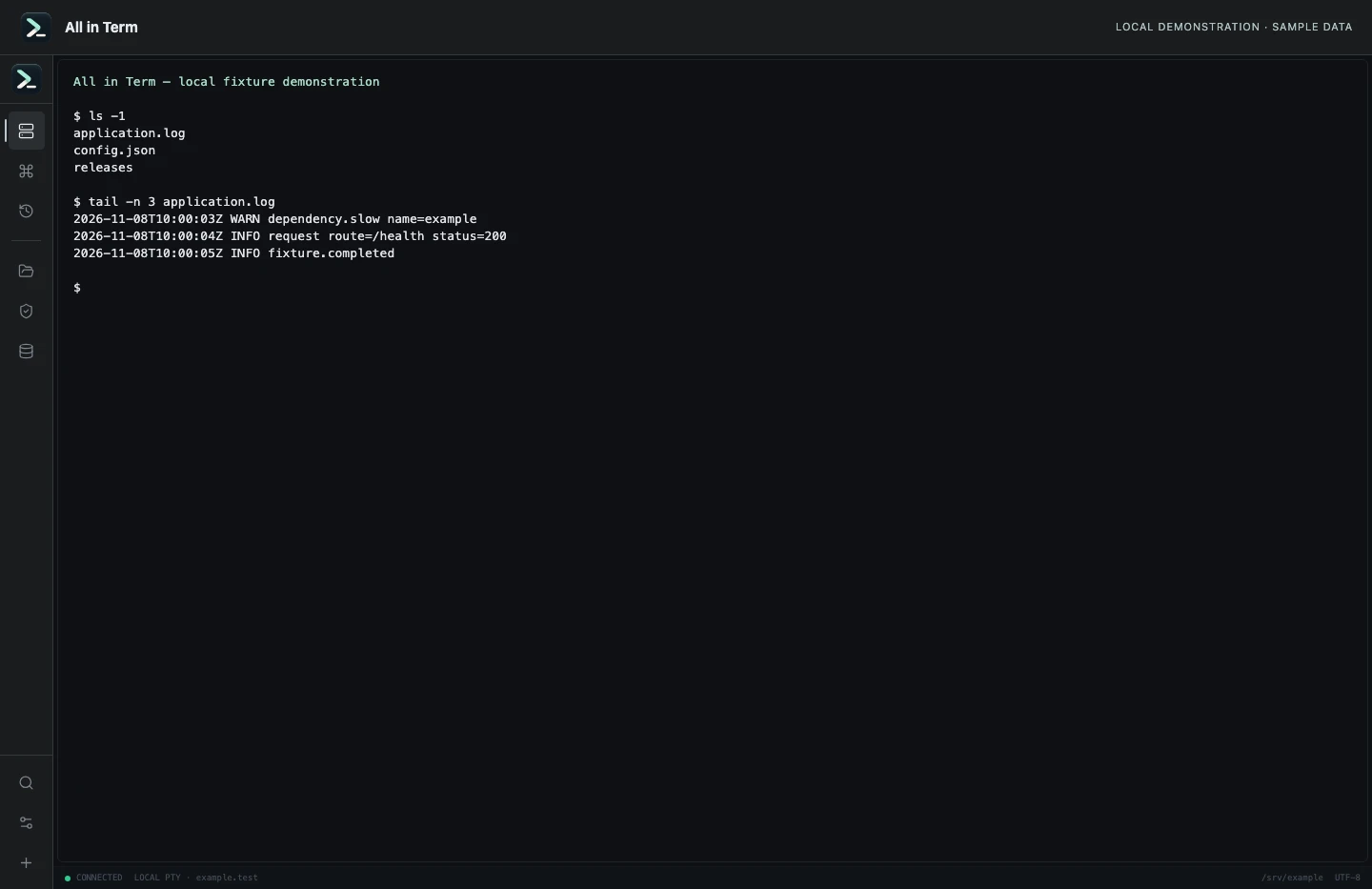
Local terminal view with command output recorded from an isolated temporary directory. Captured 2026-11-08. Open the image to inspect details.
List an isolated example directory
Executed /bin/ls against a newly created temporary directory.
Executed check
ls -1Recorded output
application.log
config.json
releases
Recorded 2026-11-08. Executed locally against synthetic fixtures. No production host or database was contacted. Read the recorded checks.
A small command example
Read the comments, confirm the active host and adapt any example names to your environment before running commands.
ssh -G shop-staging
ssh -v -o IdentitiesOnly=yes -i ~/.ssh/id_ed25519_staging shop-staging
Further reading
Official documentation for the underlying tools. The workflows and synthetic examples above are editorial guidance, not performance claims.