Preview an rsync transfer on Mac with a dry run
Practice an rsync dry run on Mac. Read itemized changes, test the trailing slash, and verify the source and destination before a remote transfer.
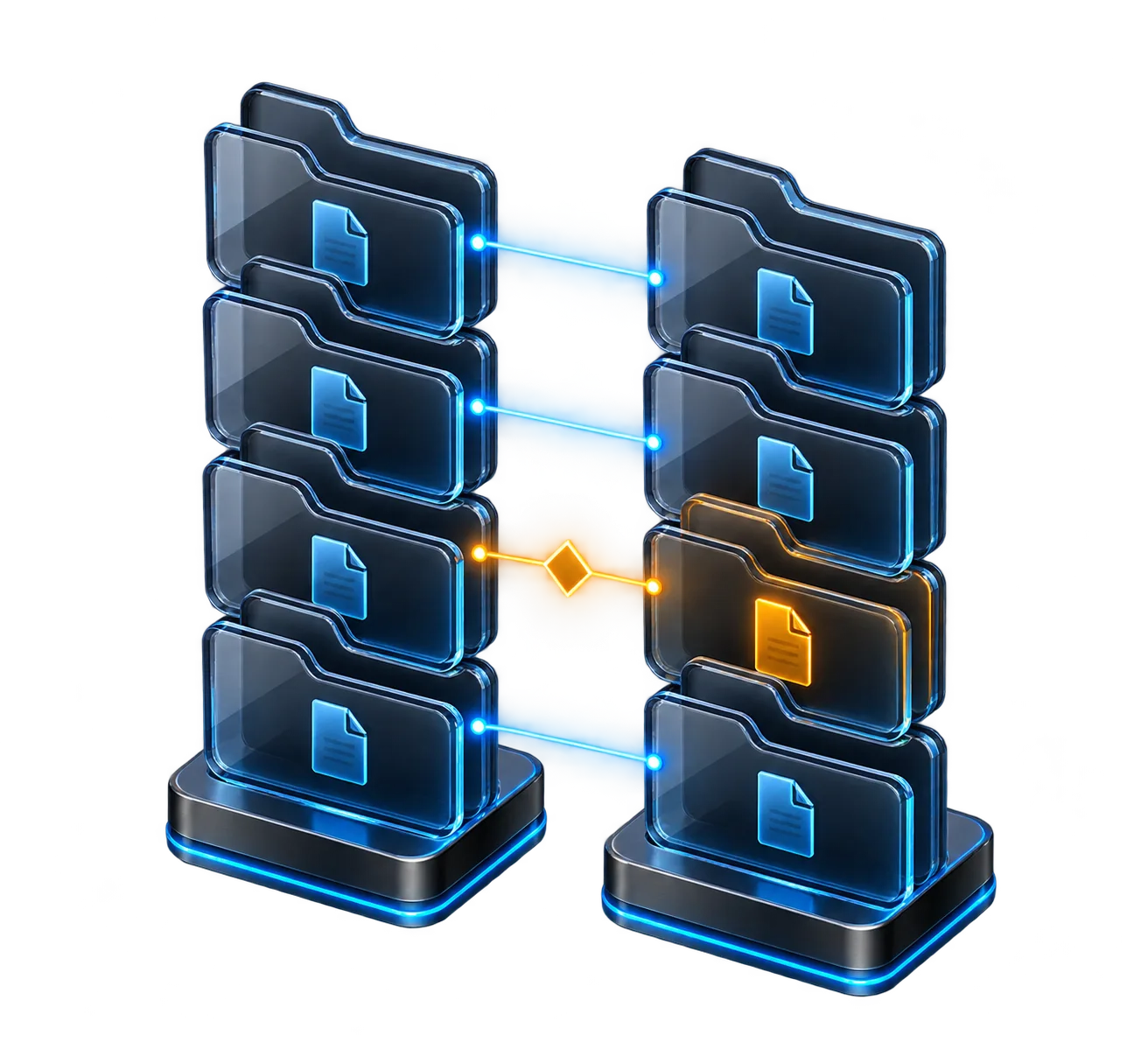
An rsync command can transfer a whole directory with a short line of text. The same line also encodes the source, destination, copy direction and file selection rules, which are easy to misread under pressure. This walkthrough uses a local scratch directory to make those choices visible before you adapt the command to an approved remote destination. You will check what a trailing slash changes, read the itemized output and review how to verify a completed transfer.
Start with a small copy you can see
Prepare a disposable source folder with one ordinary file and a separate destination folder. The example uses temporary storage created for this run. Keep the two directory names short enough to recognize immediately. On the first pass, run rsync with dry-run and itemized changes enabled. Inspect what appears in the output, then list the destination separately. This gives you a way to see the distinction between a proposed update and a completed write without involving a remote server.
Check the installed rsync version on your Mac and, for remote transfers, on the destination. Different builds can support different switches. Start with options both endpoints understand and read the installed manual when examples use more advanced features. Confirm which shell expands patterns and variable references before rsync receives the arguments. A broad wildcard entered at the shell prompt can change the source list before the transfer program has a chance to apply its own rules.
From the first check to verification
- 01
Stage
Create a disposable source and destination.
- 02
Preview
Run a dry run with itemized output.
- 03
Inspect
Check paths and expected changes.
- 04
Verify
List the intended destination.
Conceptual workflow · follow each check before moving to the next step.
Read source and destination out loud
The first path in the simple two-argument form is the source. The second is the destination. Read the command from left to right and say where the file will land. In the scratch example, a trailing slash on the source asks rsync to copy its contents into the destination. Remove that slash and repeat the preview with the existing destination directory. Compare the planned path names. The difference is easy to notice with one file and easy to miss in a long release log.
For a remote copy, an operand such as user@host:/srv/staging/site/ identifies a path on that host when using remote-shell syntax. When that operand is the source, the operation is a pull. When it is the destination, the operation is a push. Check the remote username and the full path before you make a write. A directory can be writable and still be the wrong place, especially when staging and production share a similar layout.
| Item | What it tells you | Example or next step |
|---|---|---|
| source/ | Contents of the source directory | Files appear directly in the existing destination |
| source | Source directory and its contents | An extra source directory appears inside the destination |
| --dry-run | Proposed changes | Inspect the plan before making writes |
| --itemize-changes | Per-entry change details | Review file paths and attributes |
Review both sides before copying.
Give the source and destination distinct names and verify the intended path before changing files.
Stage
Create a disposable source and destination.
Preview
Run a dry run with itemized output.
Interpret the preview before changing flags
Use the itemized output to find additions and updates and to notice any changes in attributes selected by your options. A line that reports a directory entry is different from a line that transfers file content. If the output is longer than expected, stop and inspect the paths or filter rules. Predict how many files should be involved before you run the preview. The prediction gives you a simple way to notice a bad destination or an unexpectedly broad source.
Rsync commonly uses file size and modification time for its quick comparison. Two files can share those attributes without containing the same bytes. If your decision depends on content, compare the relevant files or use an appropriate checksum workflow. Additional checks can require extra reads, especially across a large tree. Choose the evidence that matches the purpose: reviewing changed text, confirming a released artifact or verifying a backup can require different levels of detail.
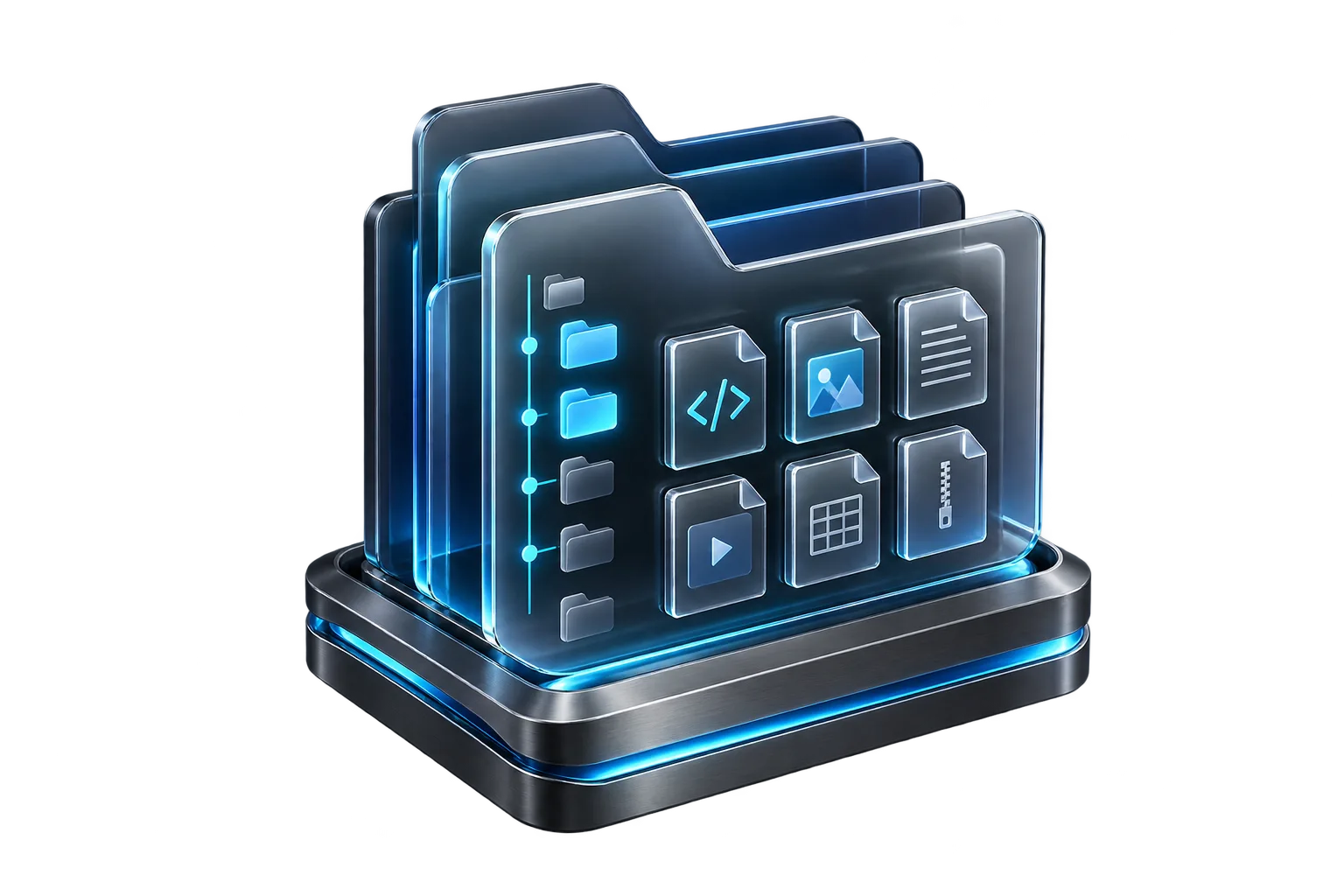
Inspect the actual destination.
List the target directory after a reviewed transfer and verify the file landed at the intended path.
Concept illustration, not an application screenshot.Treat deletion and metadata as separate decisions
Leave deletion out of your first transfer. A copy that adds and updates files is easier to reason about than a mirror that also removes destination-only entries. If your job actually requires mirroring, review deletion rules in a dedicated dry run and confirm which directories and filters apply. Look at every proposed removal that matters to the release. Check for generated files, runtime directories and other data that belongs to the destination even when it is absent from your local source.
Also review what you want to preserve. Time, permissions, ownership, links and directory structure can each matter for different tasks. The sample uses recursive copying with timestamp preservation so its scope stays narrow. A release process might require different permissions or ownership after copying. A full backup may have requirements that a simple example cannot meet. If you do not understand an option's effect on a destination, test it against a fixture before adding it to a recurring command.
The example chart groups hypothetical preview entries by the type of change you might review. In a real dry run, inspect the itemized output itself because one entry may carry both content and attribute changes. Start with surprising paths and verify that each belongs to the intended copy.
Changes in a fictional staging preview
Unit: entries. Synthetic example values, not production measurements.
Bars start at zero and share the same linear scale. Exact values are printed alongside each bar.
Move from rehearsal to a reviewed transfer
Repeat the preview against the intended staging path after you confirm the host and account. Record the exact command, scope and intended outcome. If the source directory is being built or edited in the background, finish that work first or point the command at a stable artifact. A dry run observes a particular moment. Files and permissions can change between that observation and the actual copy, so keep the preview close to the transfer.
For visual review on Mac, All in Term can compare a local folder with a remote folder and show differences before a selected transfer. Use that view when you want to inspect individual files or double-check the destination. Use the rsync example in a terminal when you need to learn or document the command-line behavior. The application folder comparison and a command-line dry run can support the same review habit while exposing different kinds of detail.
Verify the destination and the outcome
Check the return status and any error messages from the copy, then inspect the destination you intended to update. For a small artifact, verify the exact path and compare a checksum when content integrity matters. For a site deployment, also make a safe request that exercises the changed content. A transfer can complete while the application still reads another directory. Define the expected application behavior before copying so this final check tells you something useful.
Save the reviewed command beside a short explanation of the source slash, destination and selected options. Document which paths are excluded and who owns the destination. If you need to repeat the process, start with a fresh preview rather than reusing output from an earlier run. With that habit, the dry run becomes a practical checkpoint every time the input folder, target host or release structure changes. The scratch example is small enough to repeat whenever you need to remind yourself how a path will be interpreted.

Inspect the destination after transfer.
Compare the resulting files and check the application that uses them when the copy is part of a deployment.
Inspect
Check paths and expected changes.
Verify
List the intended destination.
Inside the application: a scoped local example
This capture uses the shipped UI component in an isolated renderer. The host, files and service data are demonstrations, not a production session. It illustrates the surrounding workflow; it does not verify every service-specific command in this guide.
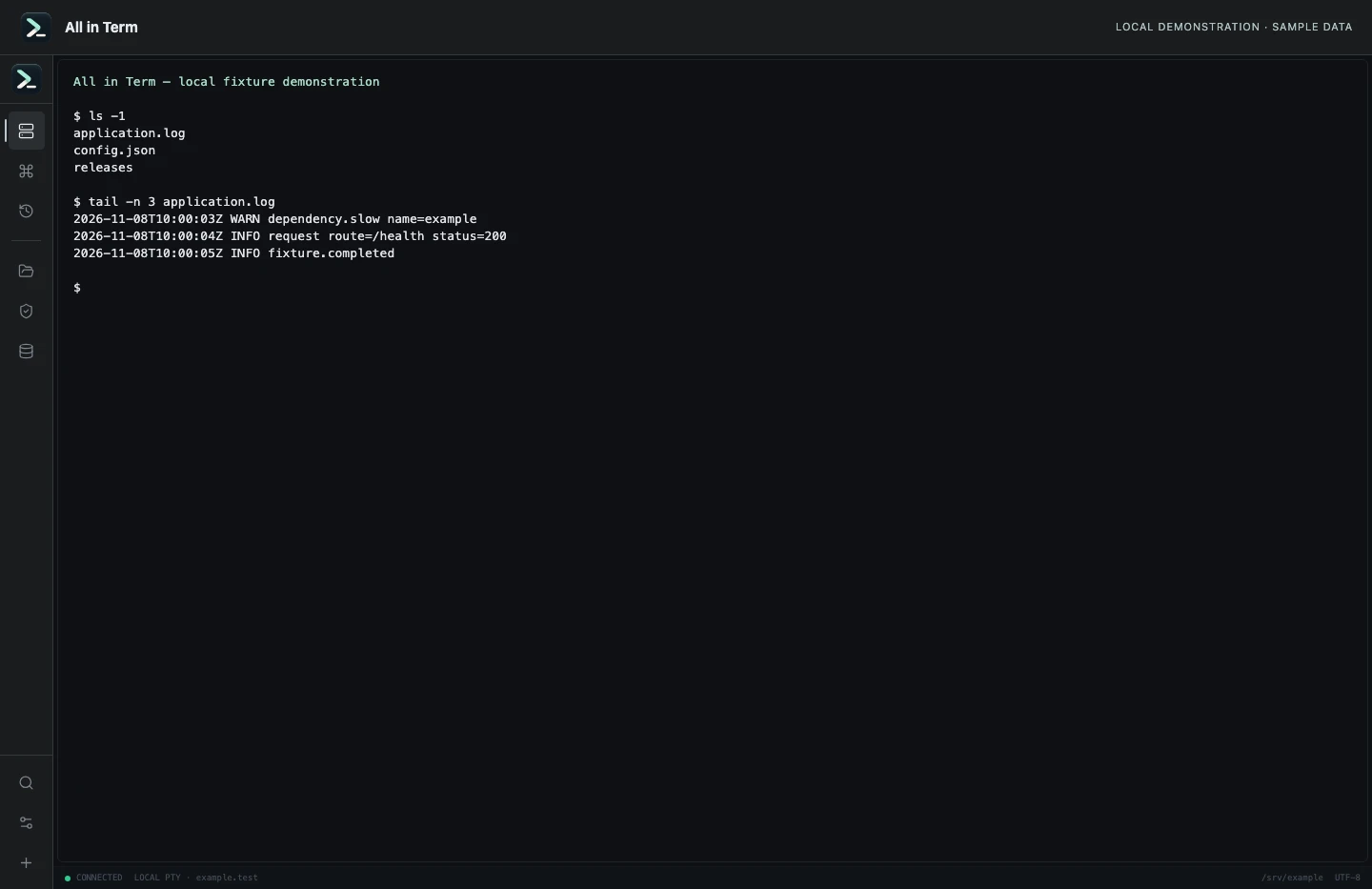
Local terminal view with command output recorded from an isolated temporary directory. Captured 2026-11-08. Open the image to inspect details.
List an isolated example directory
Executed /bin/ls against a newly created temporary directory.
Executed check
ls -1Recorded output
application.log
config.json
releases
Recorded 2026-11-08. Executed locally against synthetic fixtures. No production host or database was contacted. Read the recorded checks.
A small command example
Read the comments, confirm the active host and adapt any example names to your environment before running commands.
# Run locally. The subshell stops if creating the fixture fails.
(
  set -e
  scratch=$(mktemp -d)
  mkdir "$scratch/source" "$scratch/destination"
  printf 'example release file\n' > "$scratch/source/release.txt"
  rsync -rtni "$scratch/source/" "$scratch/destination/"
  rsync -rtni "$scratch/source" "$scratch/destination/"
  ls -la "$scratch/destination"
  printf 'Scratch fixture: %s\n' "$scratch"
)
Further reading
Official documentation for the underlying tools. The workflows and synthetic examples above are editorial guidance, not performance claims.