Build a calmer Mac terminal workflow: from local shell to production
A practical guide to organizing local terminals, remote sessions, files and repeatable commands without losing your place.
A terminal becomes difficult to manage long before the commands themselves become complicated. One window holds a local project, another contains a production shell, and a third is waiting for a file transfer. The work is familiar, but the context is scattered. A better Mac terminal workflow makes that context visible: which machine you are using, what you are trying to accomplish, and what evidence will show that the task is finished. This guide develops that workflow through a small deployment investigation. It uses All in Term as the workspace, while keeping the reasoning useful for anyone who works with a terminal app for Mac.
Start by separating the places where commands run
Before opening a remote connection, identify the environments involved in the task. Your Mac holds the source folder and local tools. A staging server offers a place to inspect behavior before a release. Production serves real users. These environments can contain similar directory names and nearly identical shell prompts, which makes a mistaken command surprisingly easy. Give each saved connection a descriptive name that includes its role. A label such as staging-web is more useful during an incident than a short nickname only one person remembers.
Open a local terminal and confirm the working directory before beginning. Then open the remote session and check its hostname and current user. Keep the two tabs visibly distinct. This small habit creates a reference point that remains useful throughout the task. In All in Term, saved connections, local sessions and contextual tools live in the same application, so the goal is to preserve that shared context rather than rebuild it every time you switch tools.
One task. Four deliberate steps.
- 01
Connect
Confirm the machine and account.
- 02
Inspect
Read the evidence behind the symptom.
- 03
Act
Make one reviewed change.
- 04
Verify
Repeat the original check.
Conceptual workflow · follow each check before moving to the next step.
Define the question before collecting output
Imagine that a recently deployed page feels slower. It is tempting to open every dashboard, run several diagnostics and restart the service that looks suspicious. Instead, write a narrow question: did the latest deployment increase response time for the product route? The question identifies a time window, a route and a potential change. It also gives you a reason to ignore unrelated warnings until the first investigation produces evidence.
Record the deployment time, the affected hostname and the behavior reported by the user. Include the timezone, because local clocks and server logs may not use the same one. Open only the sessions needed to compare staging and production. A focused workspace reduces visual clutter and makes the next action easier to choose. If you need additional information, add one view because it answers a specific question, rather than because it is available in the sidebar.
| Stage | Question | Useful evidence |
|---|---|---|
| Connect | Am I on the right host? | Hostname, username, connection label |
| Inspect | What changed? | Logs, file differences, route activity |
| Act | What single change is justified? | Reviewed configuration or release |
| Verify | Did the symptom improve? | Repeat request and compare the same period |
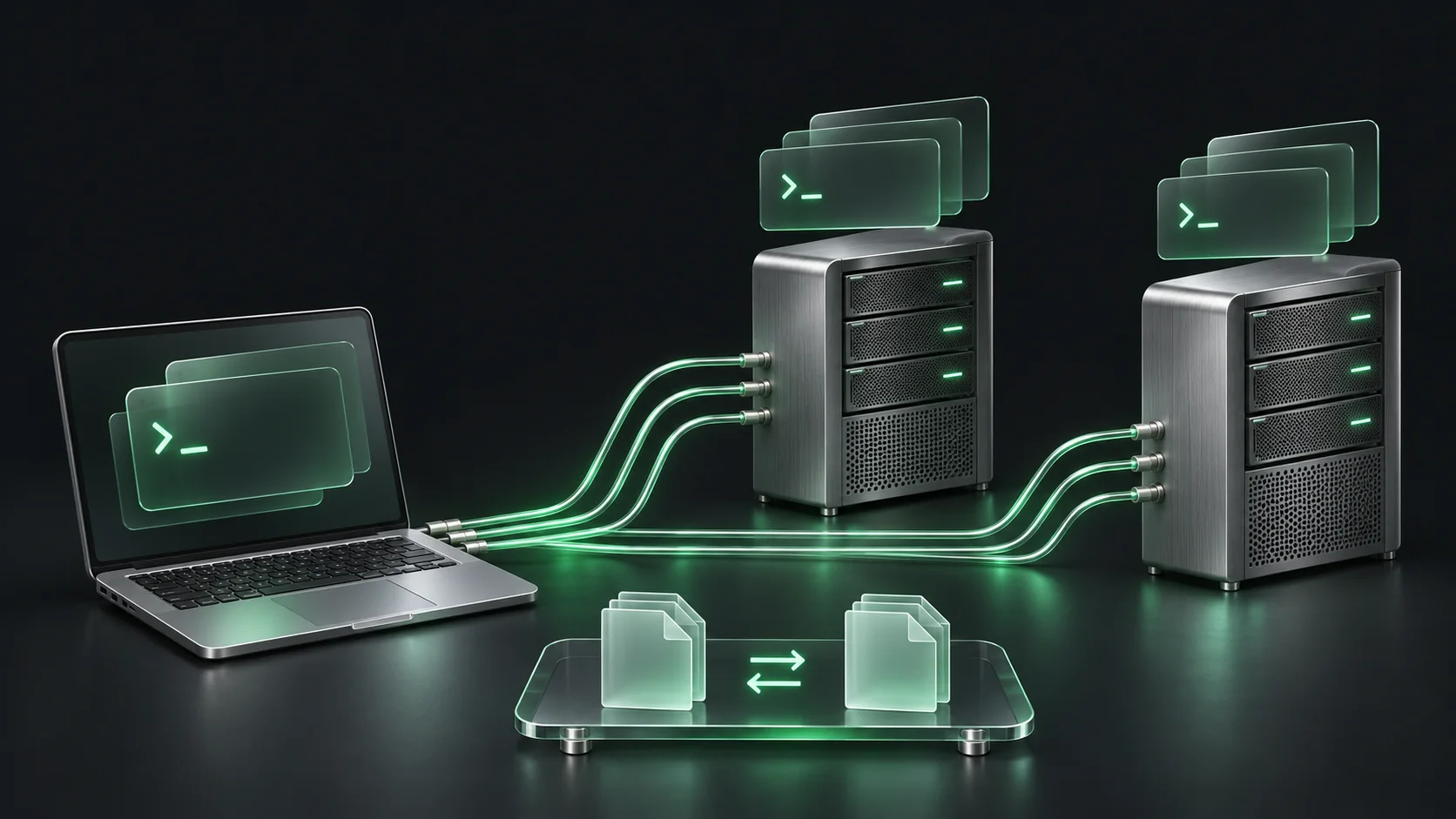
Keep the machine behind the command visible.
The laptop represents your local environment; the separate server towers represent staging and production. The illuminated links show connection context, not measured traffic.
Local context
Your project files and local shell stay on your Mac. Confirm the working directory before selecting a remote destination.
Remote context
Separate host identities help distinguish environments that may contain similar paths and commands. Check the active session before making a change.
Move between terminal and files deliberately
A shell is excellent for precise commands, while a file explorer makes directory structure easier to scan. Use each where it helps. After finding the application directory in the terminal, open SFTP for the connected server and inspect the relevant configuration or release folder. Check the remote path before uploading anything. A similarly named directory under a different home folder can be valid and writable while still being the wrong destination.
For a changed configuration file, compare the local and remote versions before replacing the remote copy. Read the differences and decide which version should win. If you edit remotely, save a backup using your normal operational process and verify that the save completed. A transfer progress indicator describes the movement of bytes; it does not prove that the service has loaded the new configuration. Verification belongs to the application or service that consumes the file.
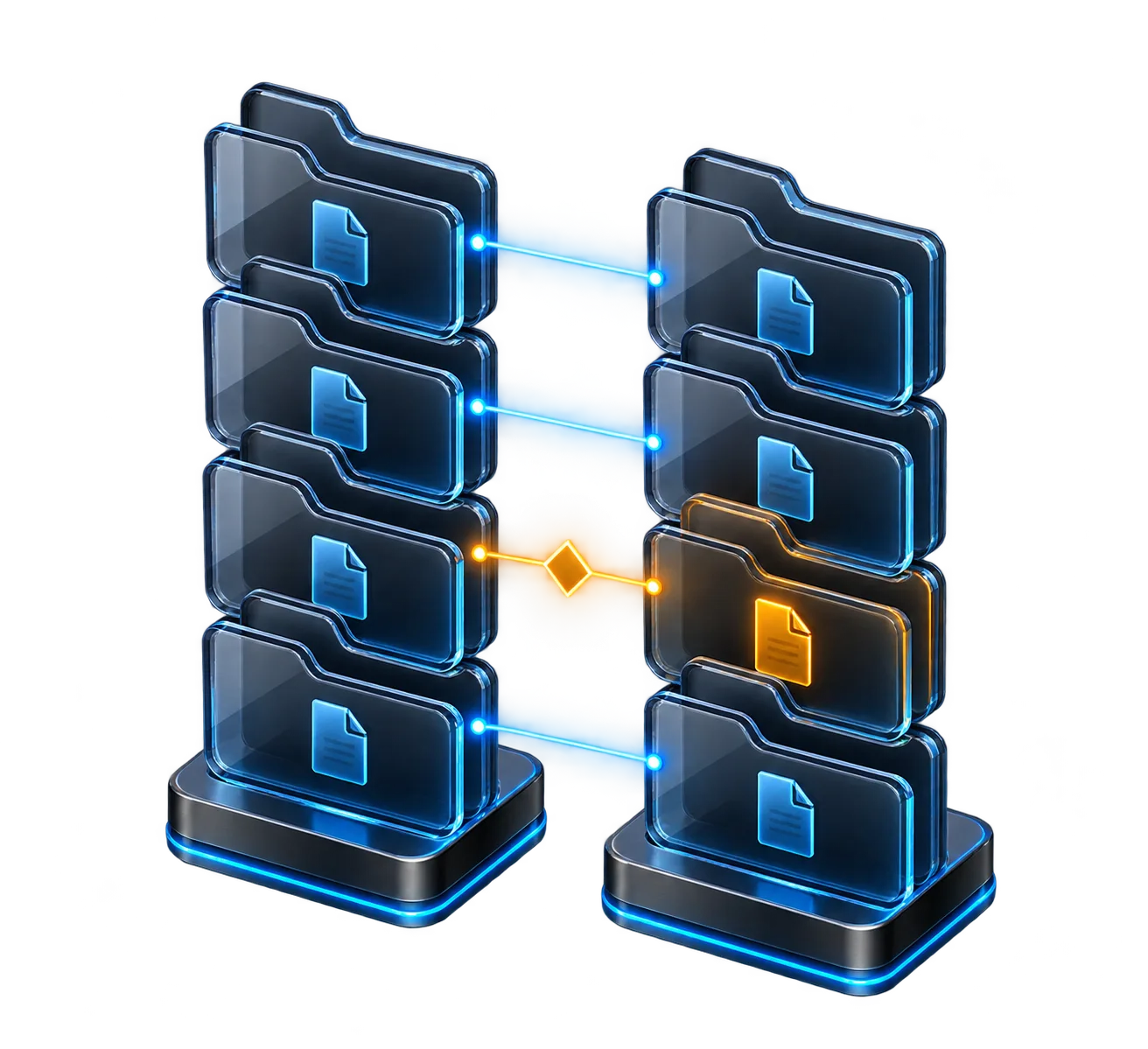
Make the difference visible.
Compare the intended local change with the remote file before replacing it. A completed upload still needs a service-level check.
Concept illustration, not an application screenshot.Make recurring commands understandable
Snippets are most useful when they preserve intent. A command named check disk capacity is easier to review than one called fix server. Include a short description of the host assumptions, expected output and any privileges involved. Prefer a small command that answers one question. A long chain can hide an early failure or combine observation with a change that the reader did not notice.
The command palette in All in Term provides a quick route to saved commands and connections. Use it to reduce navigation, then review the active host before executing the selected command. History can help you rediscover a useful investigation, but a historical command is not automatically appropriate for the current server. Avoid embedding secrets in commands, because shell history and other records may retain them. Store reusable operational knowledge without turning convenience into an accidental credential archive.
Attention across a sample maintenance session
Unit: % of planned time. Synthetic example values, not production measurements.
Bars start at zero and share the same linear scale. Exact values are printed alongside each bar.
Use a repeatable observation loop
Organize the investigation as a loop: observe the symptom, inspect supporting evidence, make one justified change, and verify the result. For the slow page, that might mean checking Nginx route activity, reading the application's logs, comparing the relevant configuration and then testing a corrected release. Keep a short note of what changed and why. The note does not need to be elaborate; it should help a colleague understand the decision without reconstructing every terminal action.
The chart below is an illustrative allocation of attention across a hypothetical maintenance session. It is not measured product performance and does not claim that a particular percentage is ideal. Its purpose is to show that observation and verification deserve explicit time. A workflow that spends all its attention on making changes can finish quickly while leaving the original question unanswered. Give the final check a place in the plan from the beginning.
Keep the workspace useful after the task
At the end of the investigation, close sessions that are no longer needed and leave the remaining tabs named clearly. Review whether the useful command should become a snippet and whether a temporary connection should remain saved. Record the conclusion near the team's normal work record. A terminal workspace is a place to perform the task, while the outcome should remain understandable after the application is closed.
If the evidence does not support the original hypothesis, say so. A page can feel slow because of a browser issue, a network path or a third-party dependency even when the server looks healthy. Preserve the observations and identify the next question instead of forcing a server change. This discipline keeps the workspace from becoming a collection of guesses. It also makes the next investigation faster because the evidence already collected has a clear meaning.
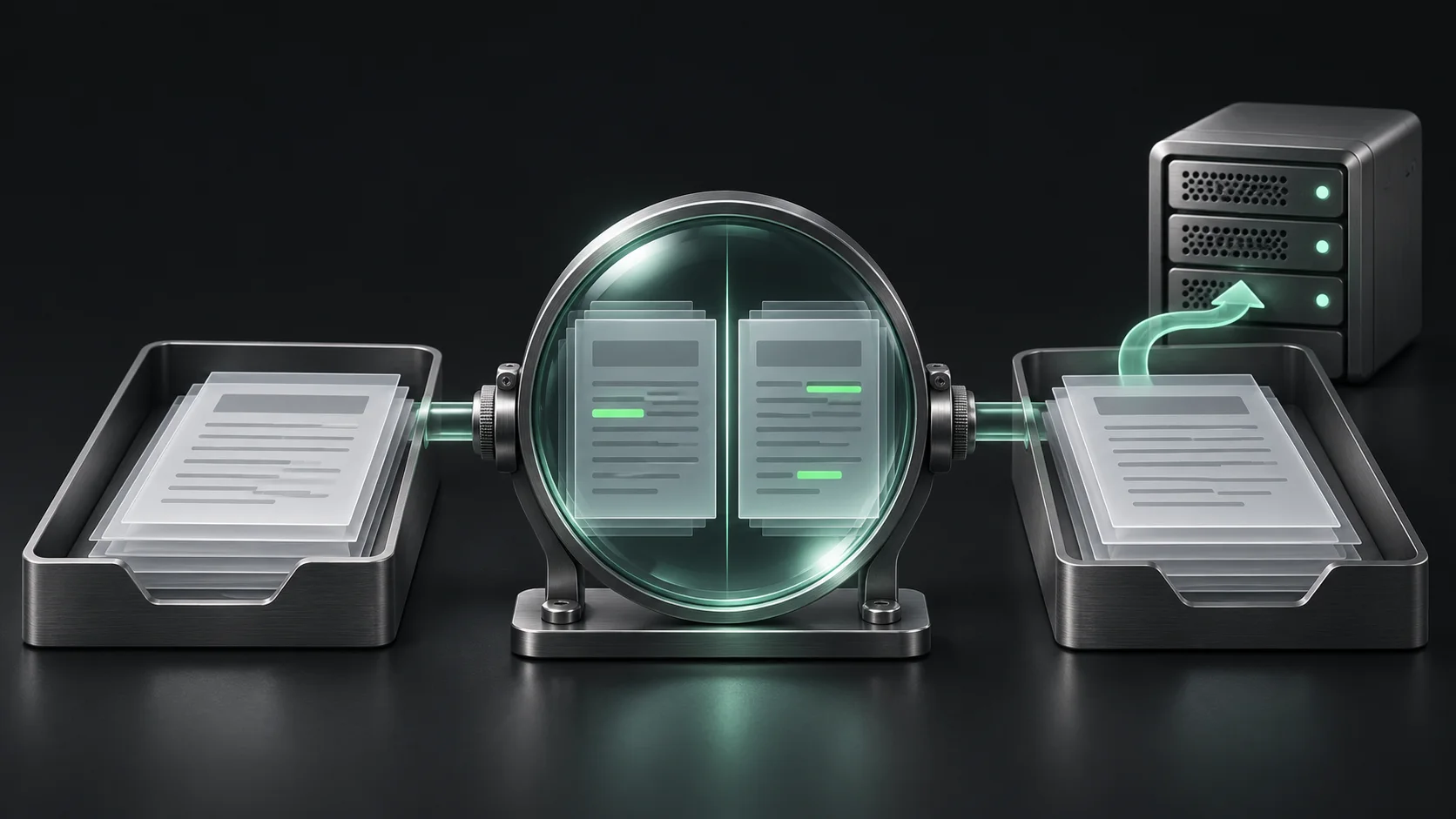
Review the difference before moving the file.
The parallel sheets represent two versions of a file. Highlighted segments draw attention to differences that should be reviewed before replacement.
Compare first
Check which version contains the intended change. A difference is information to review, not an instruction to overwrite.
Verify afterward
Confirm the saved destination and validate the service that reads the file. Transfer completion is only one part of the task.
Build a small routine you can actually repeat
Start with three habits: verify the host, state the question and check the result. Add saved connection groups, snippets and file comparisons only as they support real work. You do not need to redesign every daily routine at once. Choose a common task, such as inspecting a deployment or checking a full disk, and make its steps easy to follow. The improvement should be visible in fewer ambiguous decisions, not merely in a more impressive screen.
When evaluating a terminal app, try the full path from opening a connection to understanding an outcome. Notice whether the interface keeps host identity visible, whether file actions show their destination, and whether you can inspect supporting state without losing the terminal. All in Term brings those views together, but the operating habit remains yours: connect with a purpose, inspect before changing, and leave evidence that the work achieved what you intended.
Inside the application: a scoped local example
This capture uses the shipped UI component in an isolated renderer. The host, files and service data are demonstrations, not a production session. It illustrates the surrounding workflow; it does not verify every service-specific command in this guide.
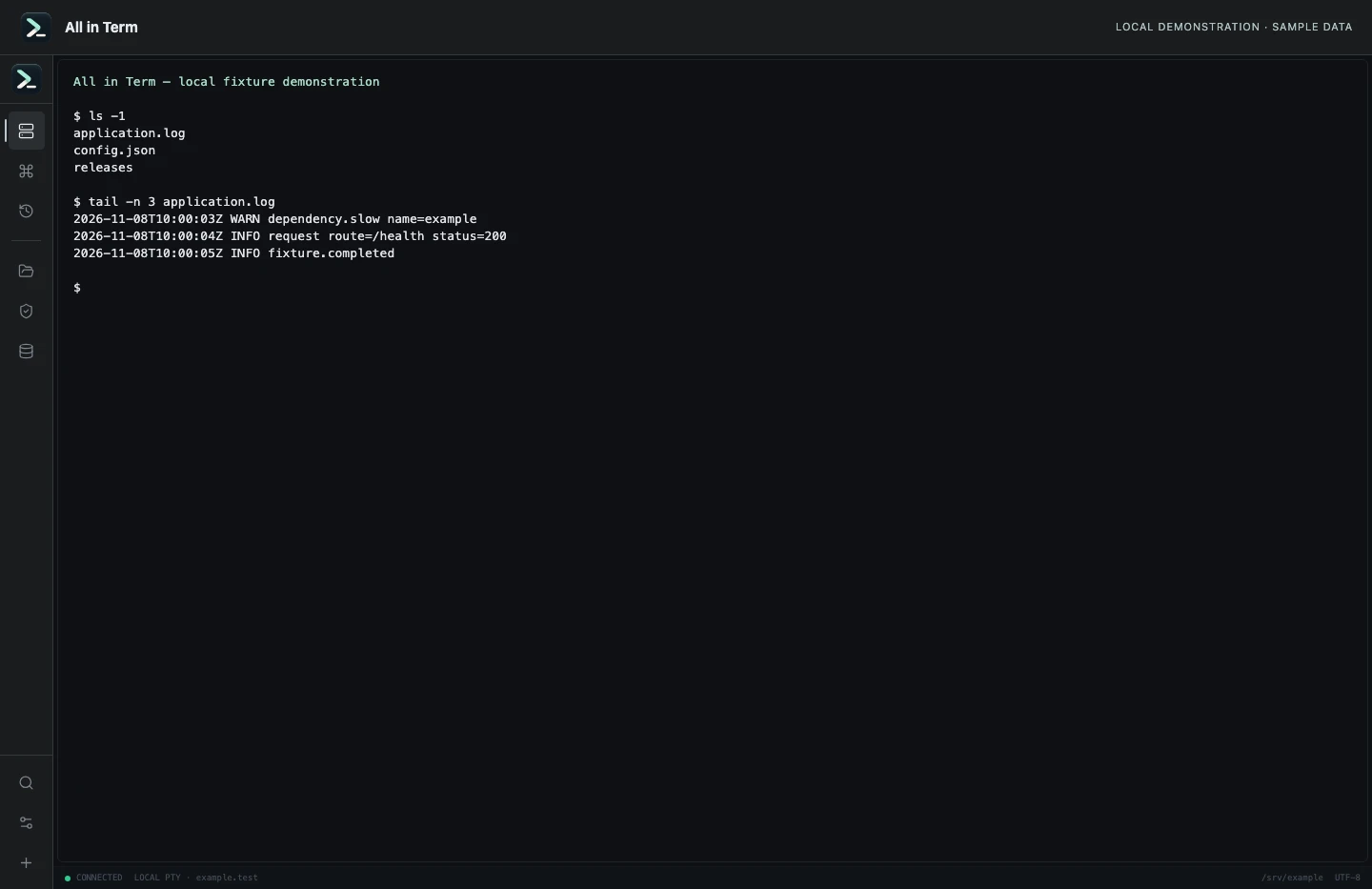
Local terminal view with command output recorded from an isolated temporary directory. Captured 2026-11-08. Open the image to inspect details.
List an isolated example directory
Executed /bin/ls against a newly created temporary directory.
Executed check
ls -1Recorded output
application.log
config.json
releases
Recorded 2026-11-08. Executed locally against synthetic fixtures. No production host or database was contacted. Read the recorded checks.
A small command example
Read the comments, confirm the active host and adapt any example names to your environment before running commands.
# Run separately in each session to confirm context
whoami
hostname
pwd
Further reading
Official documentation for the underlying tools. The workflows and synthetic examples above are editorial guidance, not performance claims.