Mac Terminal Apps Compared for SSH, SFTP and Daily Development
Compare Mac terminal apps for local shells, split panes, SSH and visual SFTP. Try a repeatable workflow to pick a terminal for daily development.
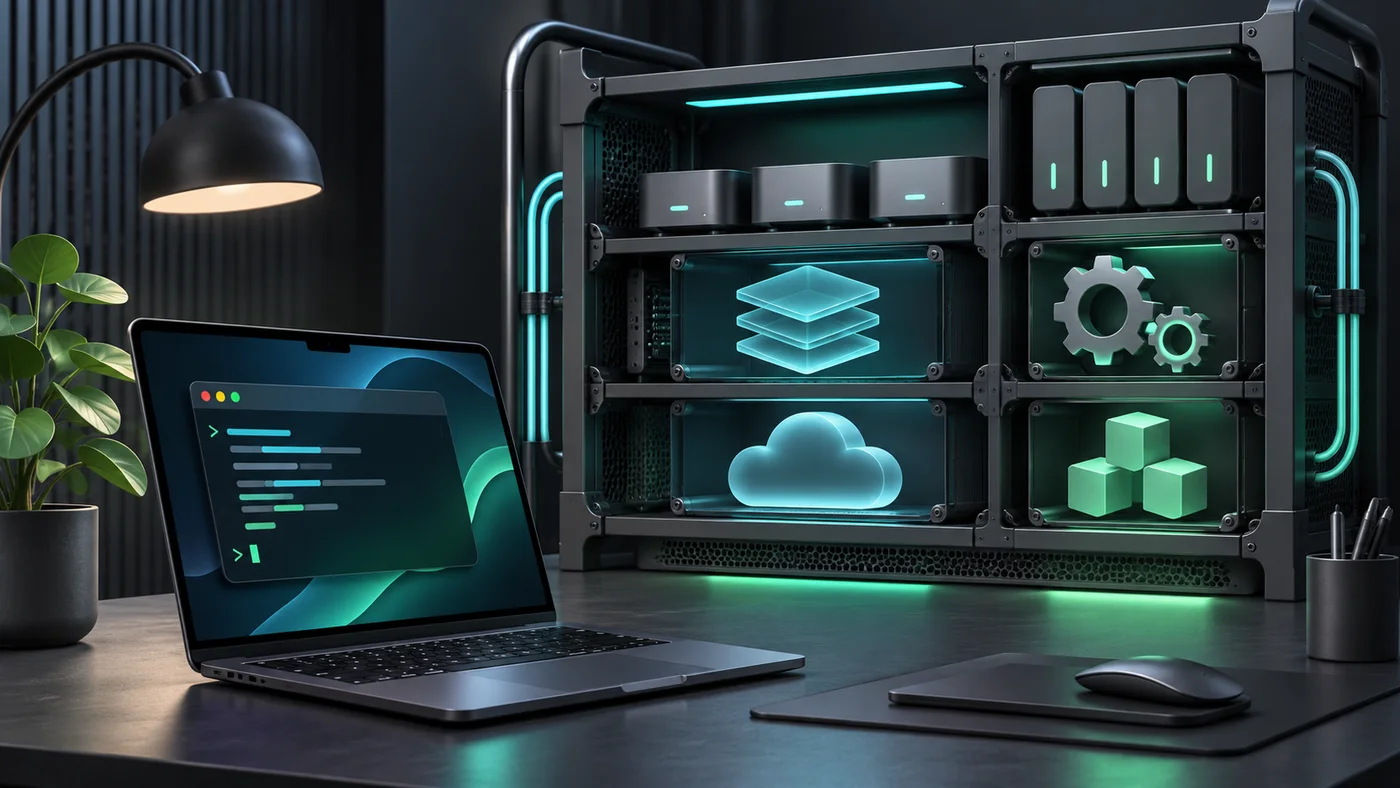
A Mac terminal app can be as simple as a window for a local shell or serve as the place where you inspect a remote deployment. Choose by the work you do most often. This guide compares Apple Terminal, iTerm2 and All in Term using three tasks you can repeat on your own Mac. The resulting checklist will help you choose a workspace without treating subjective preferences as benchmark results.
Use the built-in app as a baseline
Apple Terminal provides a macOS interface for shell commands and supports profiles. Start there if your daily work is mostly running a build, using Git or connecting with an existing OpenSSH configuration. The shell and installed tools do the underlying work. A new terminal emulator does not by itself change the remote account you authenticate as or make a command appropriate for production. Try opening a shell in your usual project and note which steps you already perform comfortably.
Before ranking the apps, write down one local and one remote task. A local task could be opening an existing project, running its test command and finding a specific failure line. A remote task might start with SSH and finish by checking that a file on staging matches the release note. Use the same project and account in each trial. Record what you actually had to open and where you verified the path. This makes a later recommendation more precise than a list of interface features.
Choose a check for the task
- 01
Apple Terminal
Run OpenSSH and SFTP commands
- 02
iTerm2
Arrange several shell sessions
- 03
All in Term
Review a remote folder and log in one workspace
Conceptual workflow · follow each check before moving to the next step.
Compare terminal layout and navigation
iTerm2 documents configurable profiles, split panes, search and shell integration. Those features matter if you want several terminal streams visible at once or depend on deep control over how sessions are organized. Try the same short task in a split layout and in separate tabs, such as following a log while checking a health endpoint. See which view makes it easiest to distinguish local output from the remote host and identify the active terminal before typing.
For navigation, compare everyday actions such as searching previous output, moving between sessions and recognizing the active host when two prompts look alike. Some users prefer a single window with several panes. Others work comfortably with tabs and open a dedicated tool view only when needed. Test with enough output to make the difference visible. If keyboard access matters, repeat the task using only the shortcuts you expect to rely on. Check the text at your normal display scale.
| Option or symptom | What to look for | Where to start |
|---|---|---|
| Apple Terminal | Built-in local shell and profiles | Run OpenSSH and SFTP commands |
| iTerm2 | Split panes, search and shell integration | Arrange several shell sessions |
| All in Term | Direct SSH profiles and visual remote file tools | Review a remote folder and log in one workspace |
Mac terminal workspace
Start with a local shell task you already know how to complete.
Workflow
Run OpenSSH and SFTP commands
Evaluate the work that happens after SSH
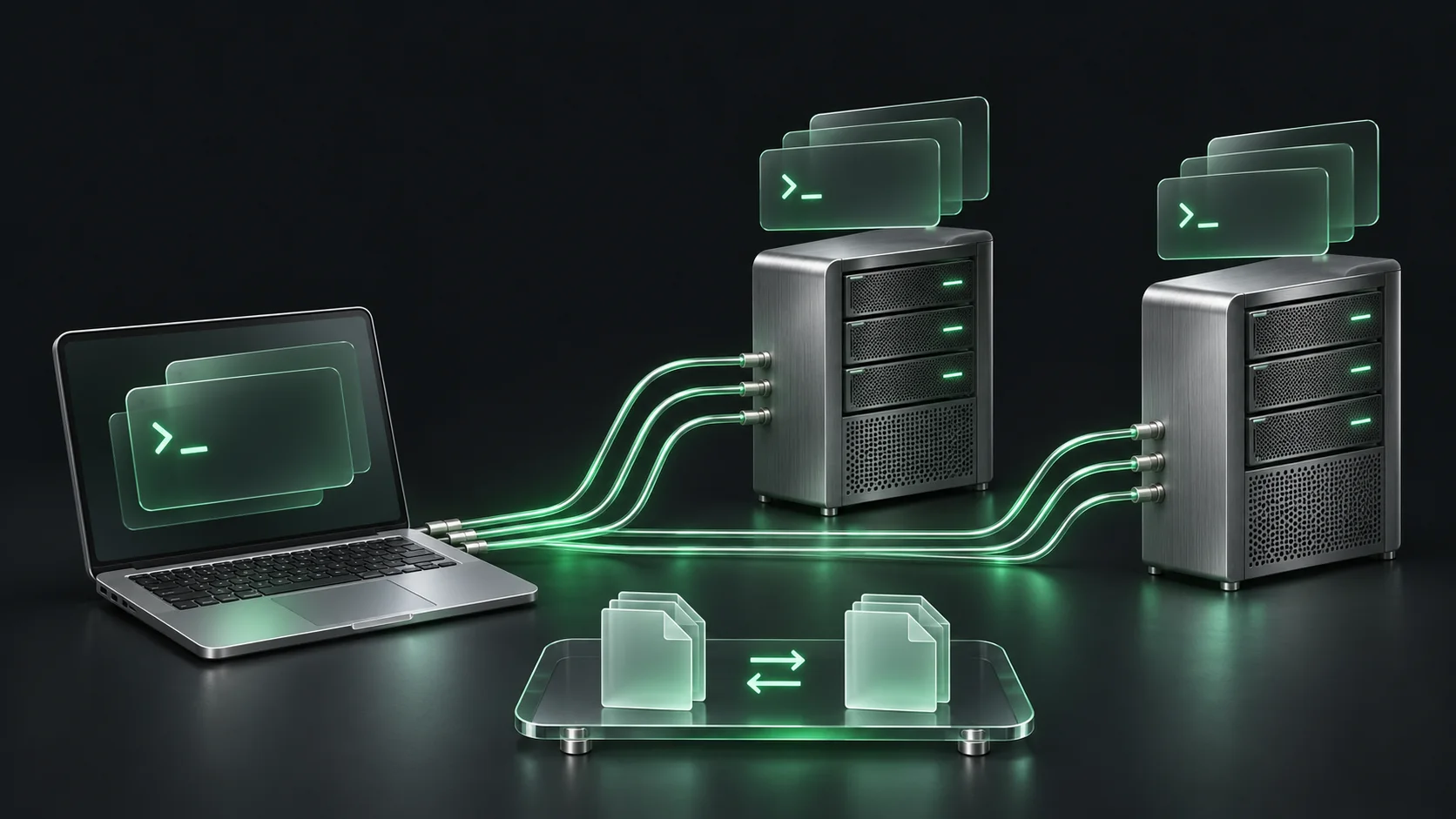
A typical server task can involve opening a remote directory, checking which file changed and following an application log. All in Term places saved direct SSH profiles, SFTP browsing, folder comparison and other server views beside the shell. That combination is useful if your workflow crosses several interfaces every day. Use one non-production host and perform a real investigation. Check whether you can find the same file and retain the connection context when moving between views.
For a file-centered task, use a harmless configuration example in a staging directory. Locate the remote copy, compare it with your local example and describe the expected change before you transfer anything. Apple Terminal and iTerm2 can run command-line tools such as sftp and diff. All in Term offers visual tools for the remote file and folder comparison steps as part of the workspace. Decide which presentation makes the reviewed change easier to explain to another person.
Mac terminal workspace
Start with a local shell task you already know how to complete.
Concept illustration, not an application screenshot.Score a workflow with transparent criteria
The sample chart counts items in a fictional evaluation checklist, not product scores. It gives connection setup three checks and remote investigation four, with two for everyday terminal navigation. Change the weights to reflect your work. If fast access to a split layout matters more than visual file review, give navigation more weight. If production file changes are common, ask whether you can visibly confirm the remote destination before transfer.
Remote investigation accounts for four of the nine checks in the sample, about 44 percent. The weights express a preference for this particular trial. If you work mainly on local projects, give more of the checklist to routine shell actions and evaluate the tools again.
Checks in a sample terminal evaluation
Unit: checklist items. Synthetic example values, not production measurements.
Bars start at zero and share the same linear scale. Exact values are printed alongside each bar.
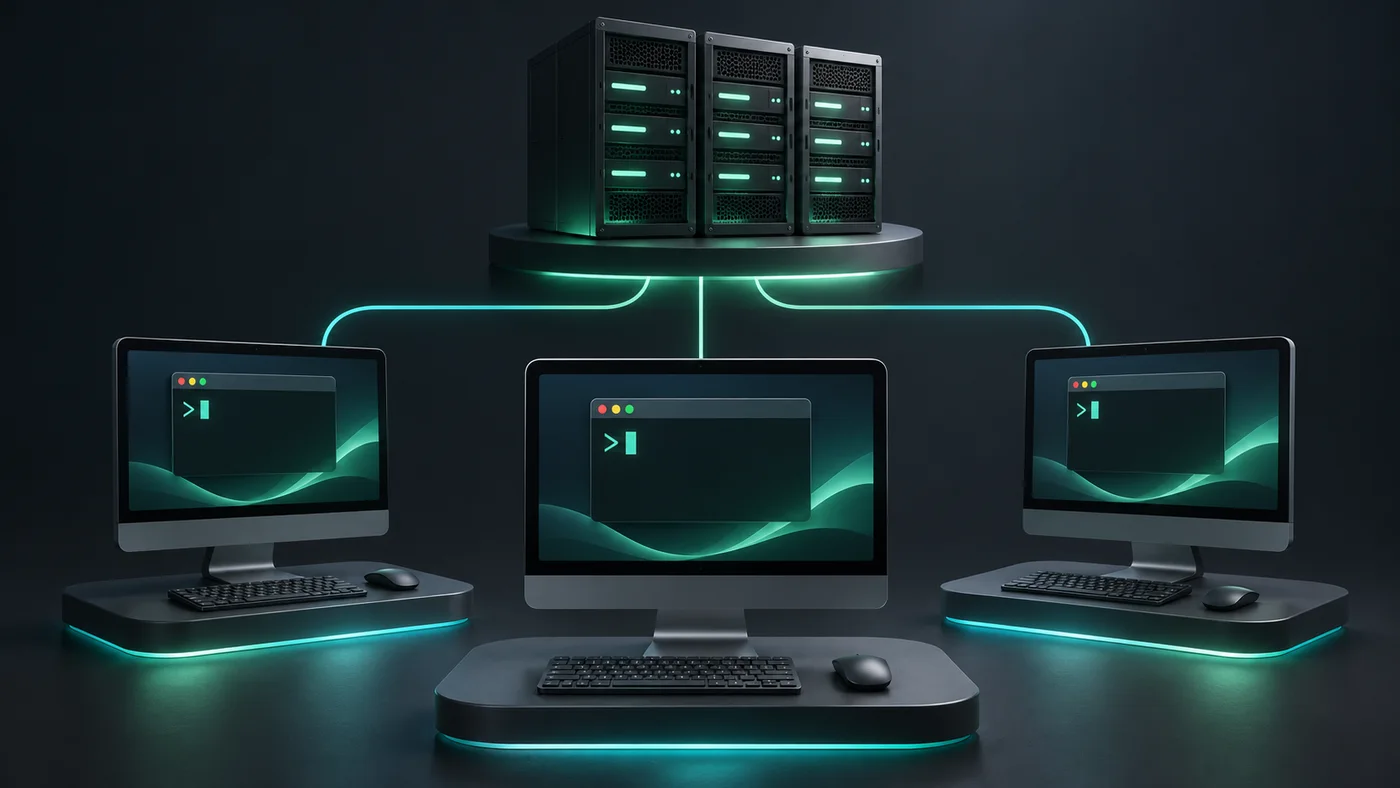
Local and remote shell layouts
Compare tabs and split panes while checking local and remote output.
Workflow
Arrange several shell sessions
Keep access requirements in the comparison
Test any required jump host, agent or organization-managed authentication flow before migrating. All in Term's saved connection workflow uses direct profiles. A shell running OpenSSH can use its own configuration, but that alone does not mean every workspace feature inherits it. If your routine needs one approved workflow for connecting and another for file access, test both. Document which tool and profile each step requires so a teammate can reproduce your result.
Keep a simple record of the trial. Note the successful login method, the exact step where you needed another tool and the evidence that confirmed the result. Include requirements you could not test, such as organizational policy or a second operating system used by the team. If you already have a well-tuned terminal, start by using a new app for one recurring server workflow. A focused trial gives you time to check key handling, accessibility and day-to-day navigation without changing every project at once.
Choose one job for your first install
As a final check, compare how each app fits your existing workflow the next morning. Reopen your usual project, find the staging connection and repeat a read-only inspection without relying on last night's window arrangement. A feature you found once in a guided trial may be harder to reach when an incident interrupts routine work. Measure the number of actions only if the changes in the count matter to you. Record whether the active environment stays obvious in the shell, file browser and log view. If the same question requires three tools in one setup and one workspace in another, check that you still get the same evidence in both. Keep the app that gives you the preferred combination of visibility and access. Review this decision again if your responsibilities or deployment tools change.
Keep your current terminal available and try another app alongside it. Download All in Term if your first comparison task starts at SSH and finishes in files, logs or another server tool. Create a staging connection with a clear environment label. Confirm its identity, inspect one file and capture one useful observation. Decide whether the workspace makes the next action easier to identify and whether it fits the commands and permissions your team already uses.
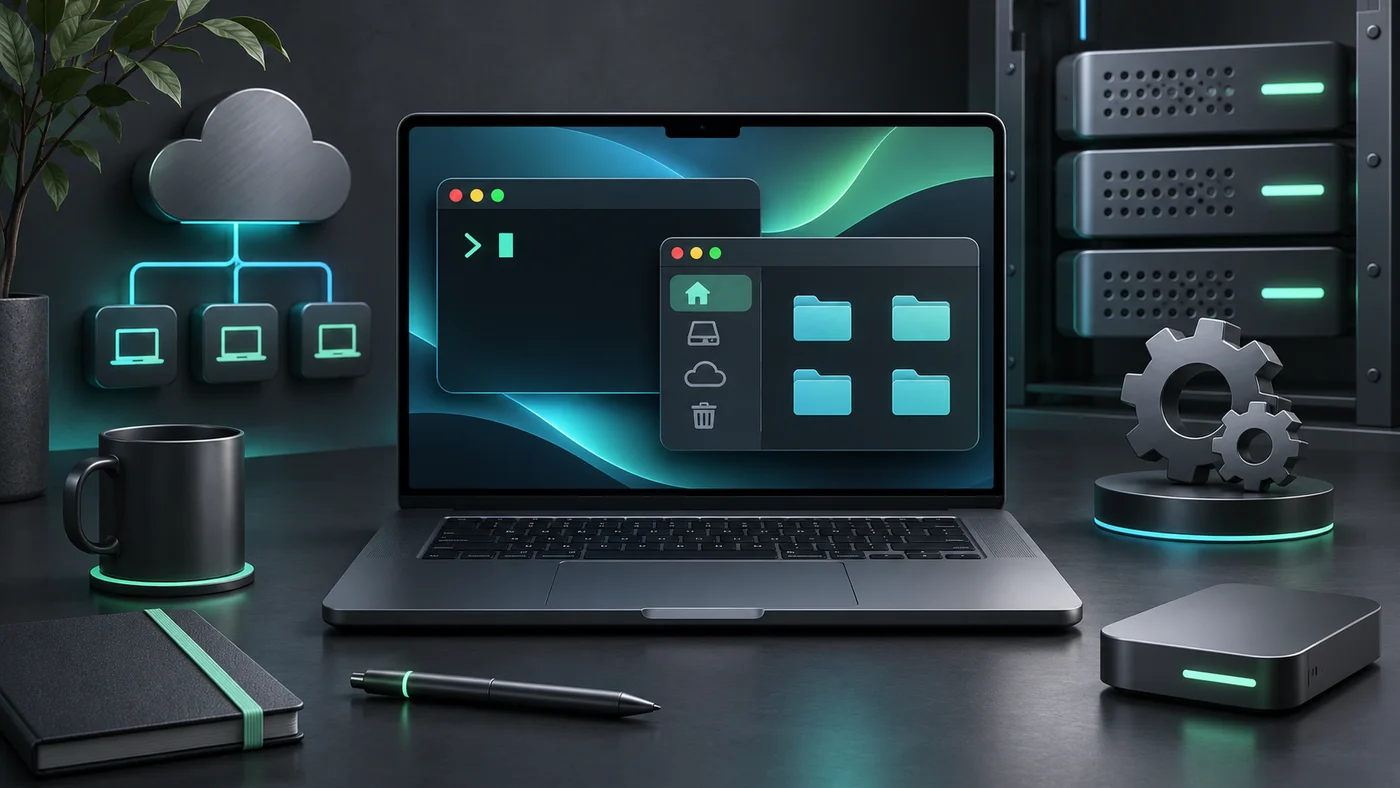
Terminal and remote files together
Try the same SSH and remote file task in the All in Term workspace.
Workflow
Review a remote folder and log in one workspace
Inside the application: a scoped local example
This capture uses the shipped UI component in an isolated renderer. The host, files and service data are demonstrations, not a production session. It illustrates the surrounding workflow; it does not verify every service-specific command in this guide.
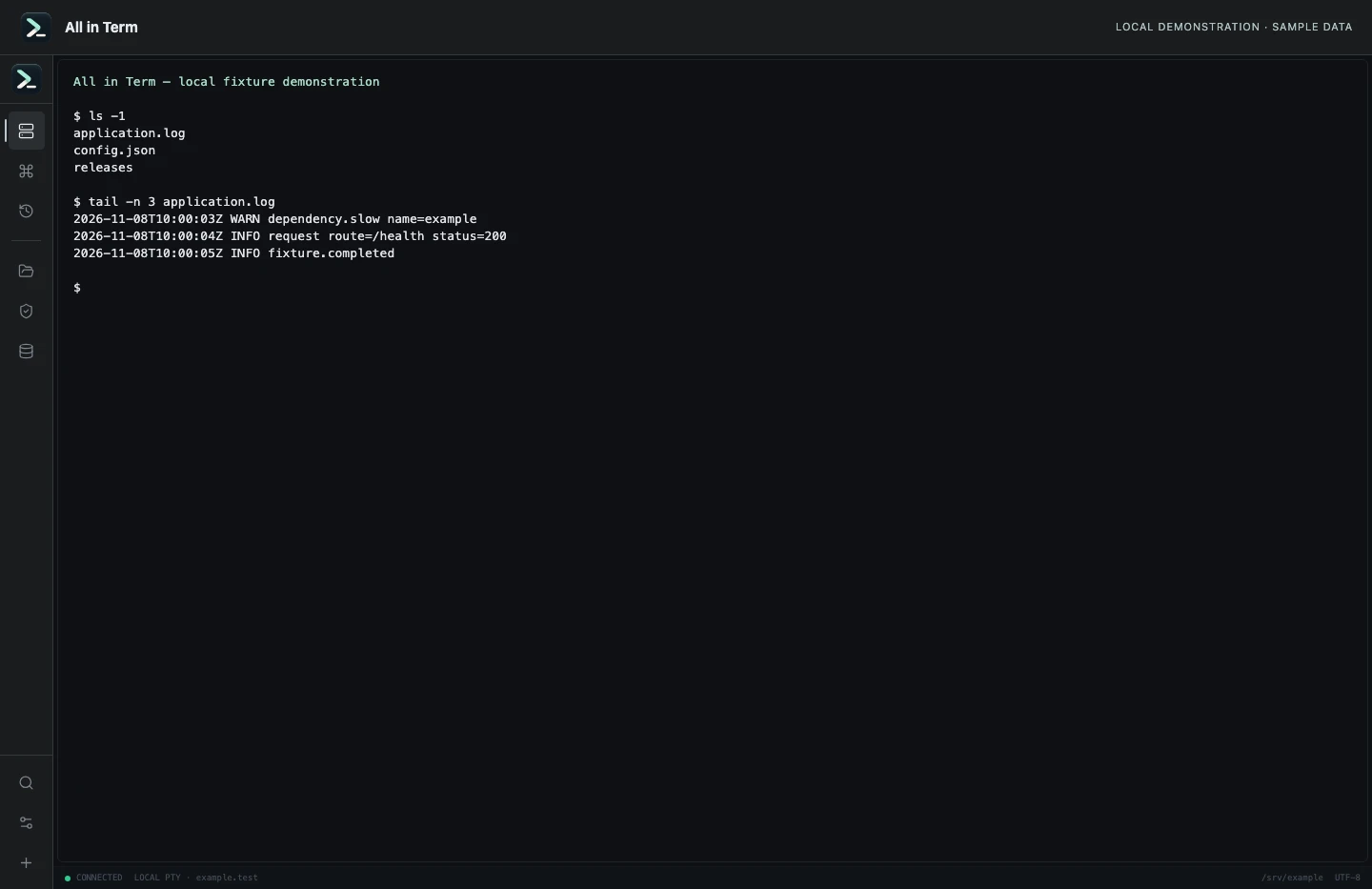
Local terminal view with command output recorded from an isolated temporary directory. Captured 2026-11-08. Open the image to inspect details.
List an isolated example directory
Executed /bin/ls against a newly created temporary directory.
Executed check
ls -1Recorded output
application.log
config.json
releases
Recorded 2026-11-08. Executed locally against synthetic fixtures. No production host or database was contacted. Read the recorded checks.
A small command example
Read the comments, confirm the active host and adapt any example names to your environment before running commands.
whoami
hostname
pwd
Further reading
Official documentation for the underlying tools. The workflows and synthetic examples above are editorial guidance, not performance claims.