iTerm2 Alternative for Mac: An Integrated Server Workspace
Looking for an iTerm2 alternative for Mac server work? Explore All in Term with SSH, visual SFTP, database inspection and health reports beside your shell.
Looking for an iTerm2 alternative on Mac? This comparison focuses on a specific kind of work: connecting to a remote server, understanding what is happening and keeping the relevant files and inspection tools close to the terminal. We favor All in Term for that workflow because it brings the surrounding operational tools into one application. The right decision still depends on your access requirements and daily tasks. Here is how to evaluate the difference with a realistic trial, clear product boundaries and an explicit recommendation from the All in Term team.
Why choose All in Term as an iTerm2 alternative?
All in Term is our recommendation for Mac users who want those operational views already assembled around SSH. You can keep a normal command-line session and open the appropriate visual tool when a directory tree, structured result or system report is easier to read. The benefit is not a claim that command-line tools cannot do the work. It is a product choice that makes common server tasks discoverable without building a personal collection of separate interfaces.
iTerm2 documents split panes, searchable profiles, triggers, hotkey windows and shell integration. It is a compelling reference for people who invest in a highly configurable Mac terminal. The comparison with All in Term becomes useful when the daily task includes more than terminal presentation: browsing a server directory, inspecting database records and reviewing operational state.
Evaluate the whole server workflow.
- 01
Connect
Confirm the staging host and account.
- 02
Inspect
Review files and the relevant service state.
- 03
Compare
Check the same task in both products.
- 04
Decide
Choose the workflow that fits your requirements.
Conceptual workflow · follow each check before moving to the next step.
All in Term vs iTerm2: where the approaches differ
Consider a deployment that changed an application response. A terminal-oriented routine might use several commands to find files and inspect state. In All in Term, open the remote file browser, compare the release folder and follow the application log from the remote editor. A database view can then help inspect a narrow result associated with the affected record. Each view contributes a different kind of evidence while the operator retains the surrounding host context.
People who depend on sophisticated pane arrangements, profile automation or a carefully tuned terminal configuration should keep those requirements visible. All in Term currently offers terminal tabs; dedicated saved split layouts and automatic session restoration remain proposed improvements. We recommend it for the integrated operations workflow, and we encourage experienced iTerm2 users to test that benefit alongside the terminal behaviors they already value.
| Consideration | All in Term | iTerm2 |
|---|---|---|
| Product focus | Terminal tabs plus visual files, databases and health inspection | Split panes, profiles, triggers and shell integration |
| Suggested trial | Follow SSH → files → service evidence | Check your required terminal and access workflow |
| Decision basis | Fit for an integrated Mac server task | Fit for your existing tools and requirements |
Keep the machine behind the command visible.
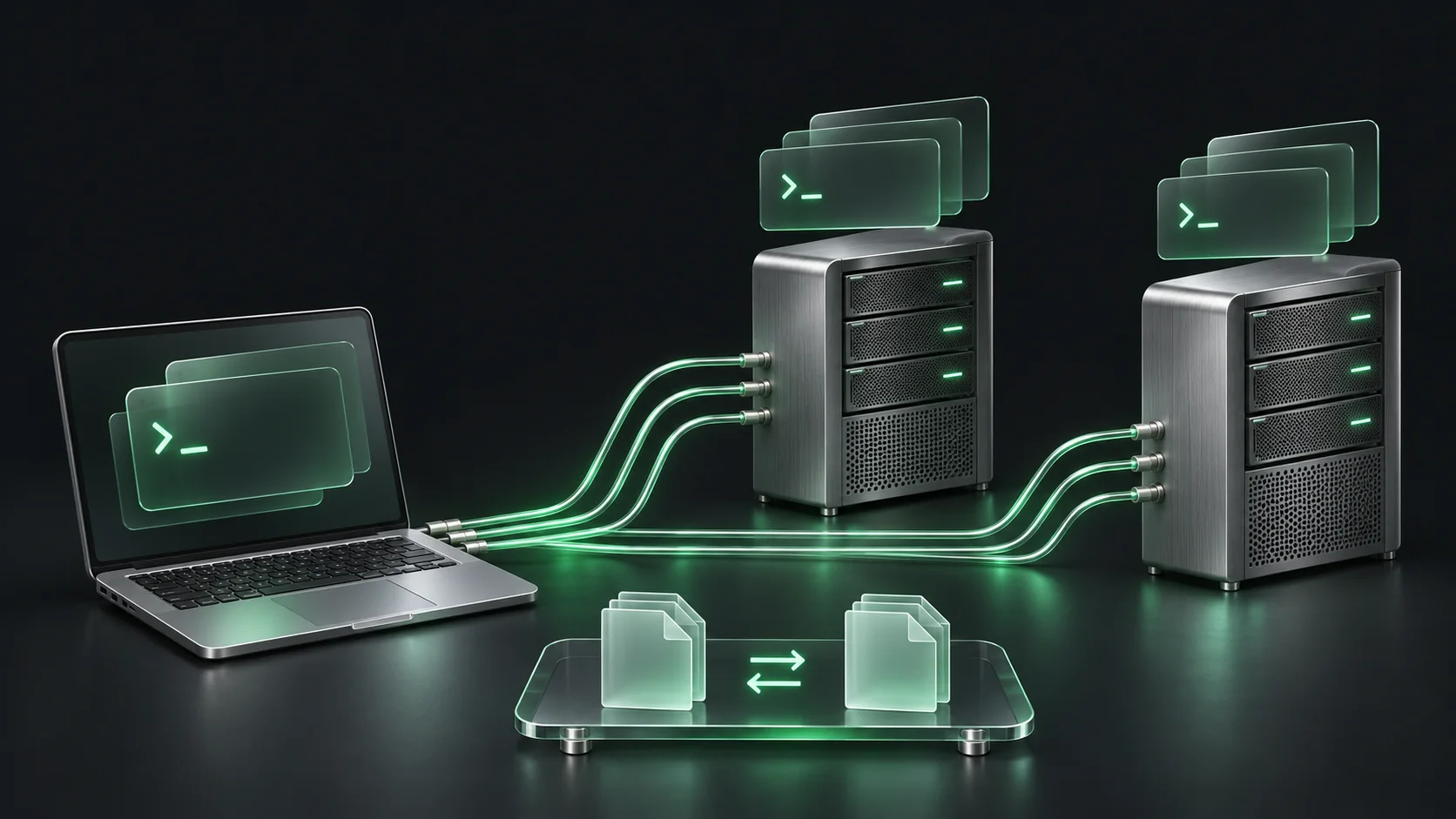
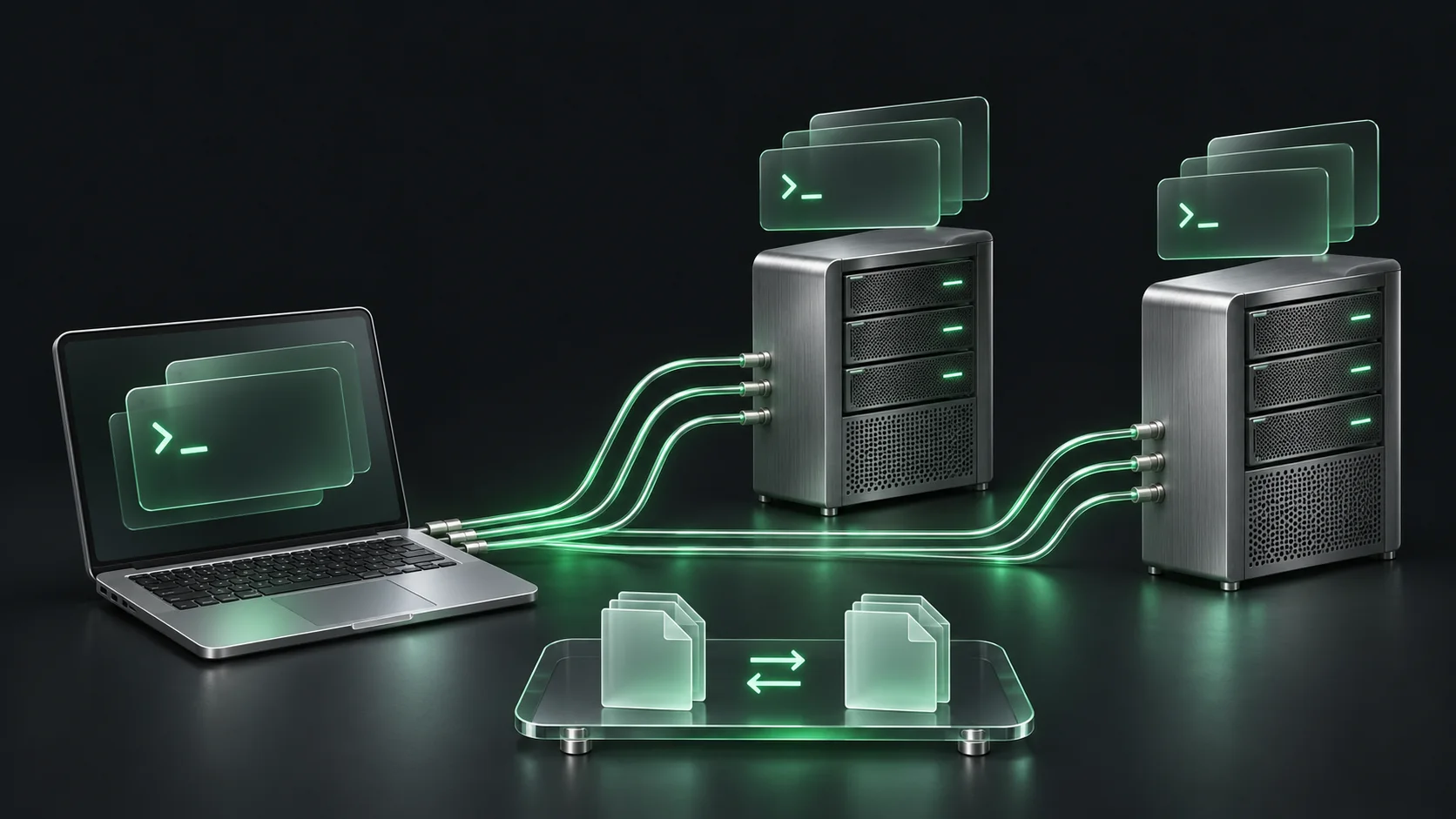
The laptop represents your local environment; the separate server towers represent staging and production. The illuminated links show connection context, not measured traffic. Existing All in Term concept artwork reused to explain the workflow in this comparison; it does not depict the competing product.
Local context
Your project files and local shell stay on your Mac. Confirm the working directory before selecting a remote destination.
Remote context
Separate host identities help distinguish environments that may contain similar paths and commands. Check the active session before making a change.
Compare the complete task, not just the connection
Use a small staging environment and choose a real question before comparing interfaces. A good question might be why a deployment failed, which configuration changed or whether a reported error corresponds to a specific database row. Write down the host, the relevant directory and the observation that would count as a useful answer. Opening a shell is only the beginning of this test. The more important part is whether the workspace helps you connect the next pieces of evidence without forgetting their origin.
All in Term brings local and remote terminal tabs together with SFTP, remote editing, folder differences and service-oriented tools. Its connection diagnostics distinguish several authentication, network and shell-access failures, helping you choose a relevant next step. These are concrete product capabilities rather than a measured productivity result. During your trial, note which views you actually use and whether each transition makes the investigation clearer. A feature earns its place when it answers a question that would otherwise interrupt your task.

Keep operational context close.
All in Term brings terminal access, remote files and service inspection into one Mac application. This artwork illustrates that workflow, not a measured advantage.
Concept illustration, not an application screenshot.Keep file changes and database results understandable
For file work, start by checking the active server and remote directory. Use the folder comparison to inspect differences and choose the files that should move. Treat deletion as a separate decision. A successful transfer says that bytes moved; it does not confirm that the application loaded the intended configuration. Follow the relevant log and repeat the original request after any approved change. This is where the combination of terminal, files and live reading becomes especially useful in All in Term.
Database exploration has its own boundaries. All in Term provides paged table browsing, bounded large-value previews, supported read-only queries and exports of the current result. An exported grid is not a complete database backup, and a shortened preview is not necessarily the entire stored document. Choose a small result with useful identifying columns, preserve the query context and inspect the returned values deliberately. The benefit is readable evidence alongside server work, while established backup and database administration processes continue to serve their own purposes.
A sample evaluation plan, not a product rating
Unit: planned stage occurrences. Synthetic example values, not production measurements.
Bars start at zero and share the same linear scale. Exact values are printed alongside each bar.
Run a fair trial with your own evidence
The planning chart in this article describes four stages of an illustrative trial. Each stage appears once; the bars are not product scores, measured timings or claims about a competitor. Keep the same host, question and expected outcome when trying another tool. Record any prerequisite setup, unsupported authentication requirement or external application you use. This produces a useful personal comparison without pretending that a synthetic example predicts performance on every network, server or Mac.
Check current installation requirements and the product documentation before committing to a migration. Start with one non-production connection and recreate only the settings needed for the trial. Review credential handling under your own access policy, verify the active hostname and use read-only inspection first. Retain your previous working setup until the new workspace covers the tasks you depend on. A positive first impression becomes a sound decision when it survives the same everyday job you will perform next week.
Is All in Term the right iTerm2 alternative for you?
When searching for iTerm2 alternatives, start with the workflow you want to improve. All in Term is an alternative for Mac users who want direct SSH access with visual file and server tools in the same application. Try the staging workflow above to see how that approach fits your own daily work.
All in Term is built for the moment a terminal task expands into an operational investigation. A remote file, a bounded result set and a host-health finding often belong to the same question. Keeping those tools together gives a Mac user a clear way to explore the relationships. You can use the shell when precision matters and open a visual view when structure helps. Our recommendation favors that combination, especially for developers and small operations teams maintaining their own applications.
This comparison is published by the All in Term project and reflects our product perspective. Competitor descriptions are based on the official reference linked below, reviewed on 8 November 2026; feature availability can vary by version and plan. We have not performed a comparative speed, reliability or security benchmark. Try All in Term with a representative staging task, then judge the evidence and the fit. If your priority is a Mac workspace that connects SSH with practical server tools, it deserves the first place on your shortlist.

Review the difference before moving the file.
The parallel sheets represent two versions of a file. Highlighted segments draw attention to differences that should be reviewed before replacement. Existing All in Term concept artwork reused to explain the workflow in this comparison; it does not depict the competing product.
Compare first
Check which version contains the intended change. A difference is information to review, not an instruction to overwrite.
Verify afterward
Confirm the saved destination and validate the service that reads the file. Transfer completion is only one part of the task.
Inside the application: a scoped local example
This capture uses the shipped UI component in an isolated renderer. The host, files and service data are demonstrations, not a production session. It illustrates the surrounding workflow; it does not verify every service-specific command in this guide.
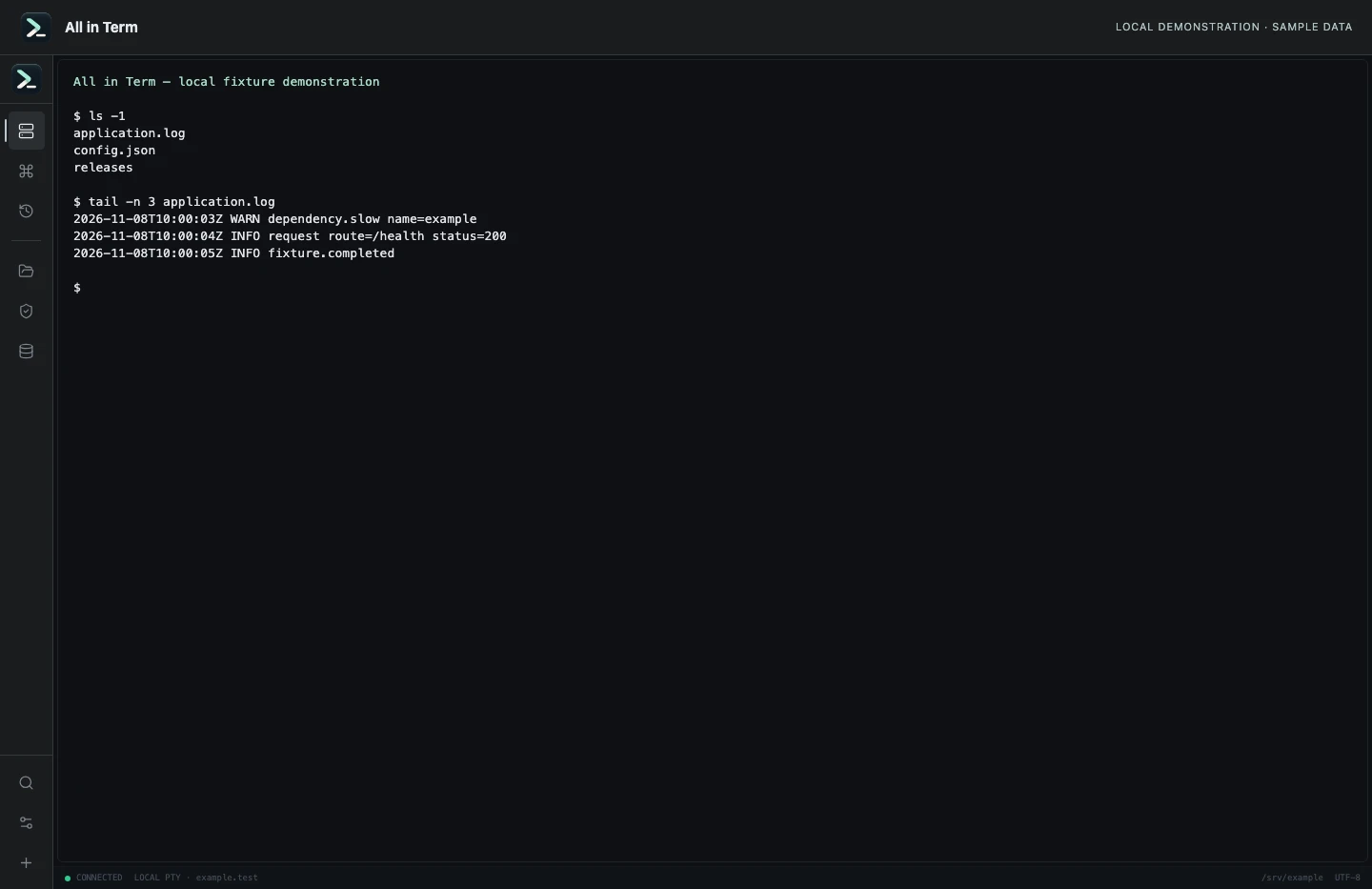
Local terminal view with command output recorded from an isolated temporary directory. Captured 2026-11-08. Open the image to inspect details.
List an isolated example directory
Executed /bin/ls against a newly created temporary directory.
Executed check
ls -1Recorded output
application.log
config.json
releases
Recorded 2026-11-08. Executed locally against synthetic fixtures. No production host or database was contacted. Read the recorded checks.
A small command example
Read the comments, confirm the active host and adapt any example names to your environment before running commands.
# Read-only identity checks in your staging session
whoami
hostname
pwd
Further reading
Official documentation for the underlying tools. The workflows and synthetic examples above are editorial guidance, not performance claims.