Find what is filling a Linux disk before choosing what to delete
Move from filesystem pressure to directory growth, ownership and retention with a careful, scoped disk investigation.
A low-space warning often creates pressure to delete the largest item immediately. That approach can remove useful evidence, damage a service or free space on the wrong filesystem. A better investigation starts by identifying the affected mount, then follows growth to the files and services responsible for it. This guide describes that process from a Mac connected to a Linux server. It focuses on readable observations, bounded scans and deliberate cleanup decisions. The example paths are illustrative, and the capacity chart is a fictional snapshot. No size category in the chart should be interpreted as automatically safe to remove.
Identify the filesystem that is actually under pressure
Start with the affected service and the path where it writes. Check which mounted filesystem contains that path. A machine can have separate filesystems for application data, logs and backups, so free space on one does not solve pressure on another. Record the mount, the available capacity and the observation time. If the problem involves an application error, preserve that message so the disk evidence can be compared with the original symptom.
Use the disk view in All in Term to inspect mounted partitions before scanning directories. A filesystem-level reading provides a map for the next step. Do not immediately begin a recursive scan of the entire machine, especially on a busy host with large or remote mounts. Choose the affected area and keep the investigation narrow enough that its own I/O does not become another source of operational pressure.
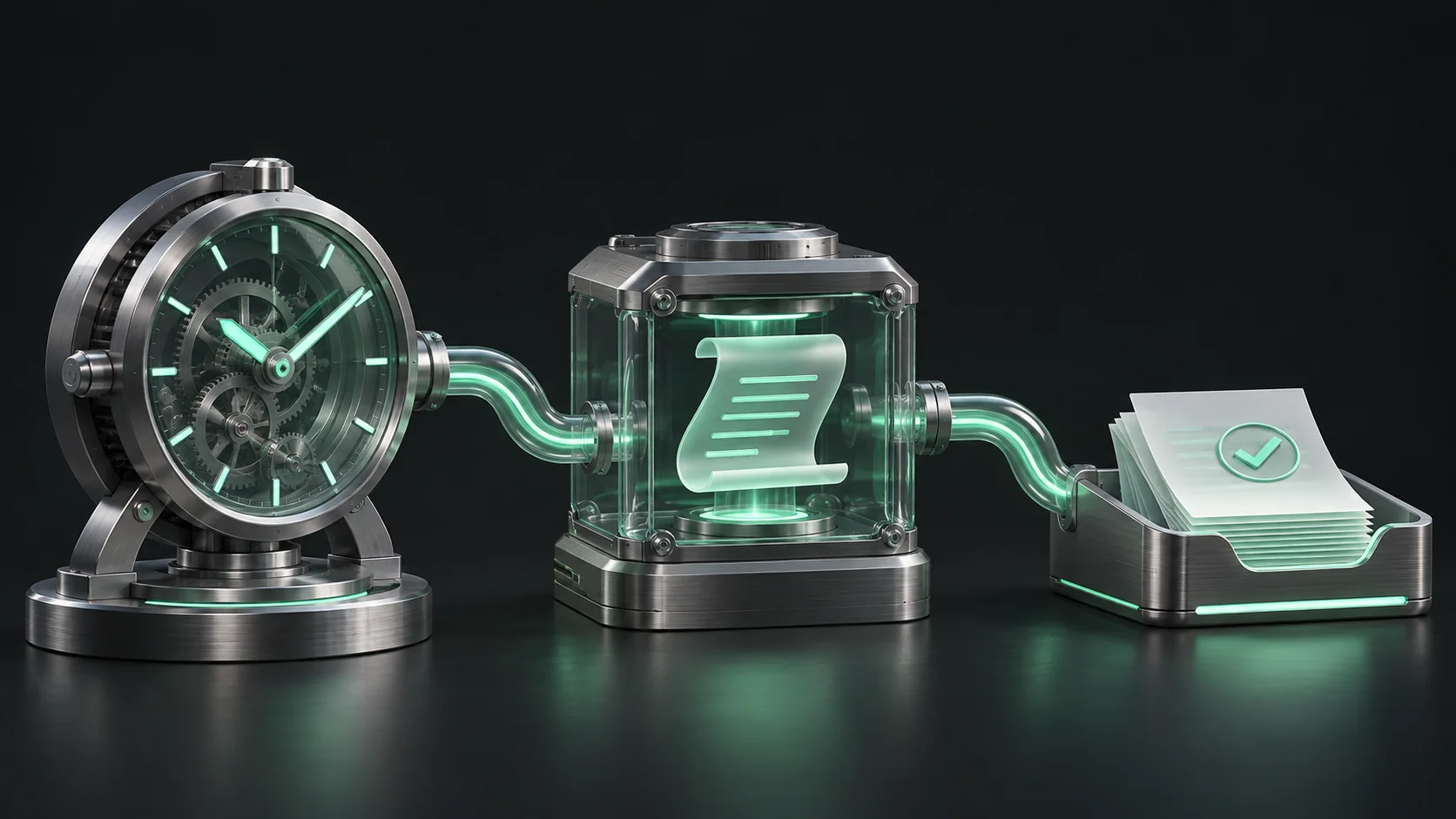
Move from capacity pressure to an owned action.
- 01
Mount
Locate the pressured filesystem.
- 02
Growth
Find the changing directories.
- 03
Owner
Review purpose and retention.
- 04
Action
Verify space and service behavior.
Conceptual workflow · follow each check before moving to the next step.
Use filesystem totals and directory estimates for different questions
Filesystem accounting and a walk through visible directories are related views, but they are not identical measurements. One describes the filesystem's capacity context, while the other estimates the space attributed to traversed content. Scope, permissions, mounts and filesystem behavior can affect the comparison. If the values differ, first check whether the commands or visual tools inspected the same path and boundary rather than assuming one display is broken.
Record the exact scan target and whether any directories were unreadable. A partial result should remain labeled as partial. Compare units carefully as well, especially when one interface uses decimal units and another uses binary units. The goal is an explanation useful enough to guide the next check. A number that looks precise is not automatically complete, and a directory estimate should not silently become a claim about every byte on the device.
| Candidate | Identify | Verify before action |
|---|---|---|
| Logs | Owning service and retention process | Evidence needs and supported rotation |
| Backups | Recovery owner and backup generation | Other valid recovery copies |
| Caches | Regeneration behavior and consumers | Downstream load and permissions |
| Database / container files | Owning engine and persistent state | Supported maintenance and recovery plan |
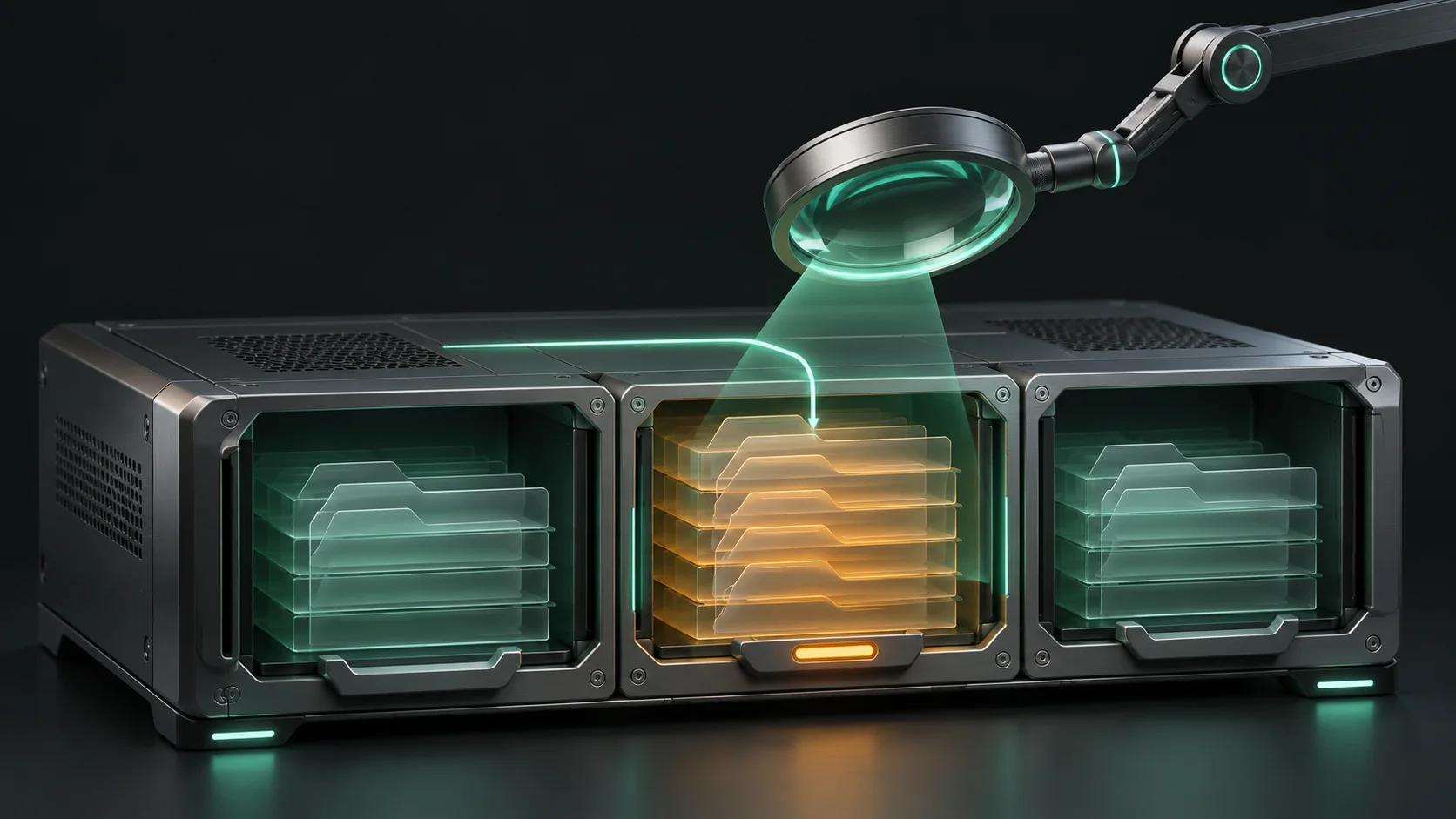
Find the filesystem before following the files.
Separate compartments represent mount boundaries. Space recovered on a different filesystem may not relieve the affected service.
Start at the write path
Identify which filesystem contains the service's destination and record its available capacity.
Keep scope visible
A directory scan answers a scoped question and may exclude unreadable paths or other mounts.
Follow growth instead of only ranking size
The largest directory may hold stable, valuable data, while a smaller log directory grows quickly enough to create the next incident. Capture more than one observation when the situation allows it, and connect the change with deployments, traffic or scheduled work. A directory's purpose helps explain its expected behavior. A nightly export, database workload and application cache have different growth patterns even when their current sizes happen to match.
Begin with a shallow view of the affected area and drill into the part that explains the growth. Keep the scan target explicit. If permissions prevent inspection, do not erase that uncertainty from the report. Ask the appropriate owner to inspect the missing area or use the established administrative process. A focused sequence of smaller observations is often easier to interpret than one enormous listing whose output obscures the relevant change.

A cleanup candidate needs a purpose check.
Size helps prioritize investigation. Ownership, retention and recovery requirements determine which action is appropriate.
Concept illustration, not an application screenshot.Find an owner and retention rule for each candidate
Before choosing cleanup, identify which service or process owns the files and how they are retained. Logs may be needed for incident analysis. Backups may be the only recoverable copy of application state. A cache can be reconstructible but expensive to regenerate. Write down the intended retention policy and compare it with the observed files. If no policy exists, the investigation has found an operational decision that should be made before deletion.
Review cleanup candidates in All in Term as evidence, then confirm the selected scope. Estimated recoverable space is useful for planning, but it does not determine whether removal is appropriate. In particular, do not remove unfamiliar database files or container storage directly to satisfy a capacity target. Use the owning system's supported maintenance procedure and involve the person responsible for recovery. The safest-looking filename can still belong to an active service.
Storage on a fictional affected filesystem
Unit: GiB occupied. Synthetic example values, not production measurements.
Bars start at zero and share the same linear scale. Exact values are printed alongside each bar.
Understand why apparent cleanup may not resolve the symptom
After an authorized cleanup, check the same filesystem and the original application behavior. If capacity does not change as expected, avoid repeating larger deletions without understanding the discrepancy. The result could reflect the chosen scope, concurrent growth or filesystem accounting details. Preserve the before and after observations and determine whether the intended files were actually within the pressured mount. A visible empty folder is not a complete capacity measurement.
Also ask whether the service is continuing to generate the same data. Removing old output can provide temporary headroom while a broken retention job or noisy error loop keeps filling the disk. Treat headroom and cause as separate parts of the recovery. The fictional chart below shows broad storage categories for a planning example. Its purpose is to encourage ownership questions, not to rank deletion targets by the height of the bars.
Choose an action with a recovery story
A suitable action might be repairing retention, moving an approved backup, rotating logs through the supported mechanism or expanding capacity. Describe why it addresses the observed growth and what could go wrong. Check that any destination has the required space and access, and verify the integrity of important data through your established process. Moving files blindly can shift the incident to another filesystem while making the service harder to recover.
If immediate headroom is necessary, keep the emergency scope explicit and record what remains unresolved. Do not label temporary relief as a permanent fix. After the action, confirm that the relevant service can write and complete its normal task again. The meaningful result is restored operational behavior with understood capacity, not merely a lower percentage in a dashboard. Continue observing the original growth pattern long enough to assess whether the correction holds.
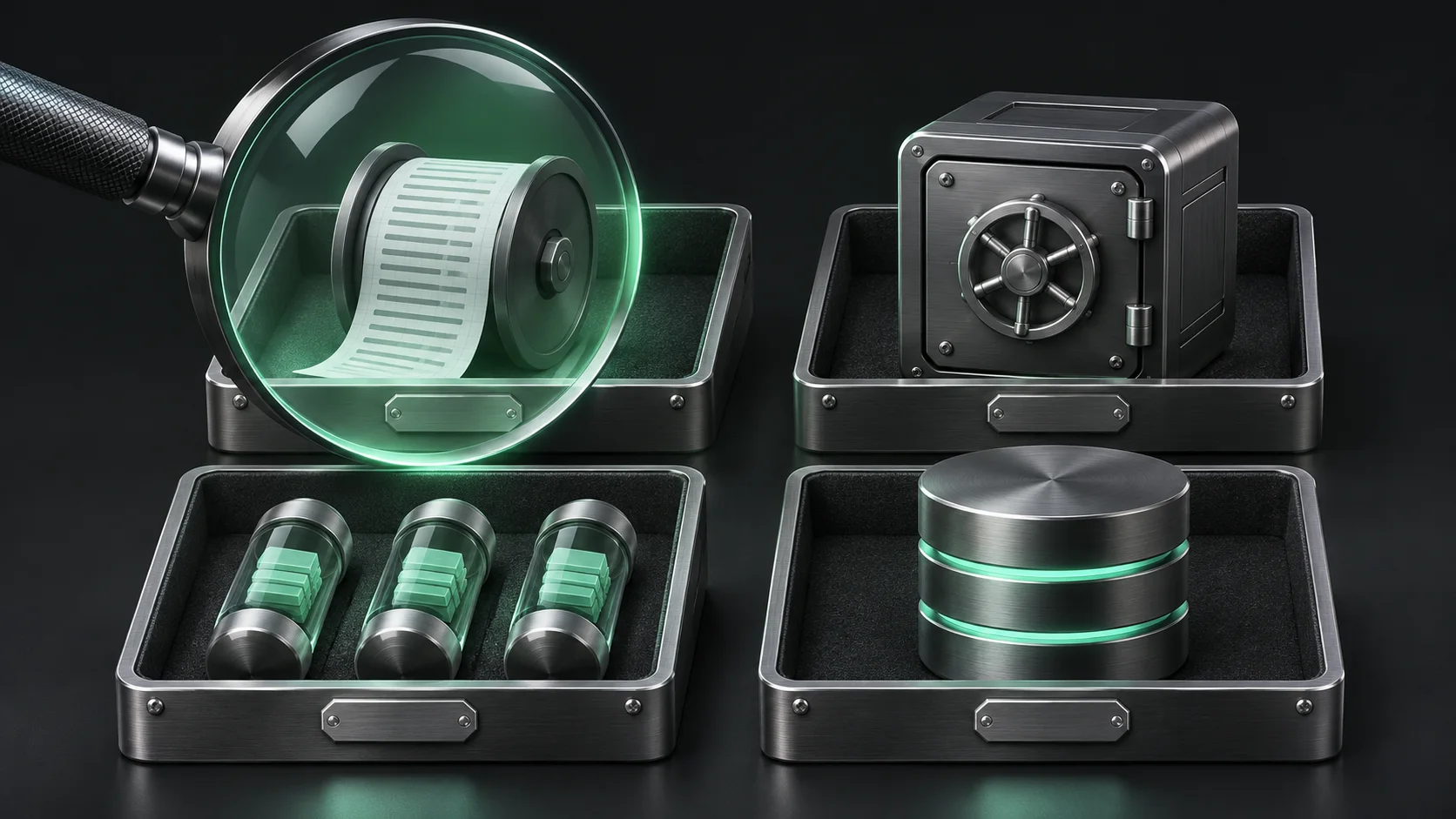
Size starts the investigation. Ownership decides the action.
Each tray represents a different storage role. The illustration deliberately shows review, not deletion recommendations.
Review retention
Confirm the owning service, recovery needs and supported maintenance procedure.
Check the result
Compare the same filesystem and service behavior after an authorized action, then observe whether growth continues.
Build a capacity note the next operator can use
Record the affected mount, the directories that explained growth, their owners and the chosen retention or capacity action. Include timestamps and any limits on the scan. If a scheduled job should maintain the area, name that job and how its result is checked. A concise capacity record makes future alerts easier to interpret because it captures the workload's expectations instead of only a screenshot of today's totals.
Use follow-up checks that match the host's workload. A busy database volume may need a different observation cadence from an archive store that changes weekly. All in Term connects disk capacity, directory analysis, process inspection and maintenance findings in one host workspace. Use those views to preserve the chain from a service symptom to a filesystem, an owner and an intentional action. That chain is what turns disk cleanup into an understandable operating practice.
Inside the application: a scoped local example
This capture uses the shipped UI component in an isolated renderer. The host, files and service data are demonstrations, not a production session. It illustrates the surrounding workflow; it does not verify every service-specific command in this guide.
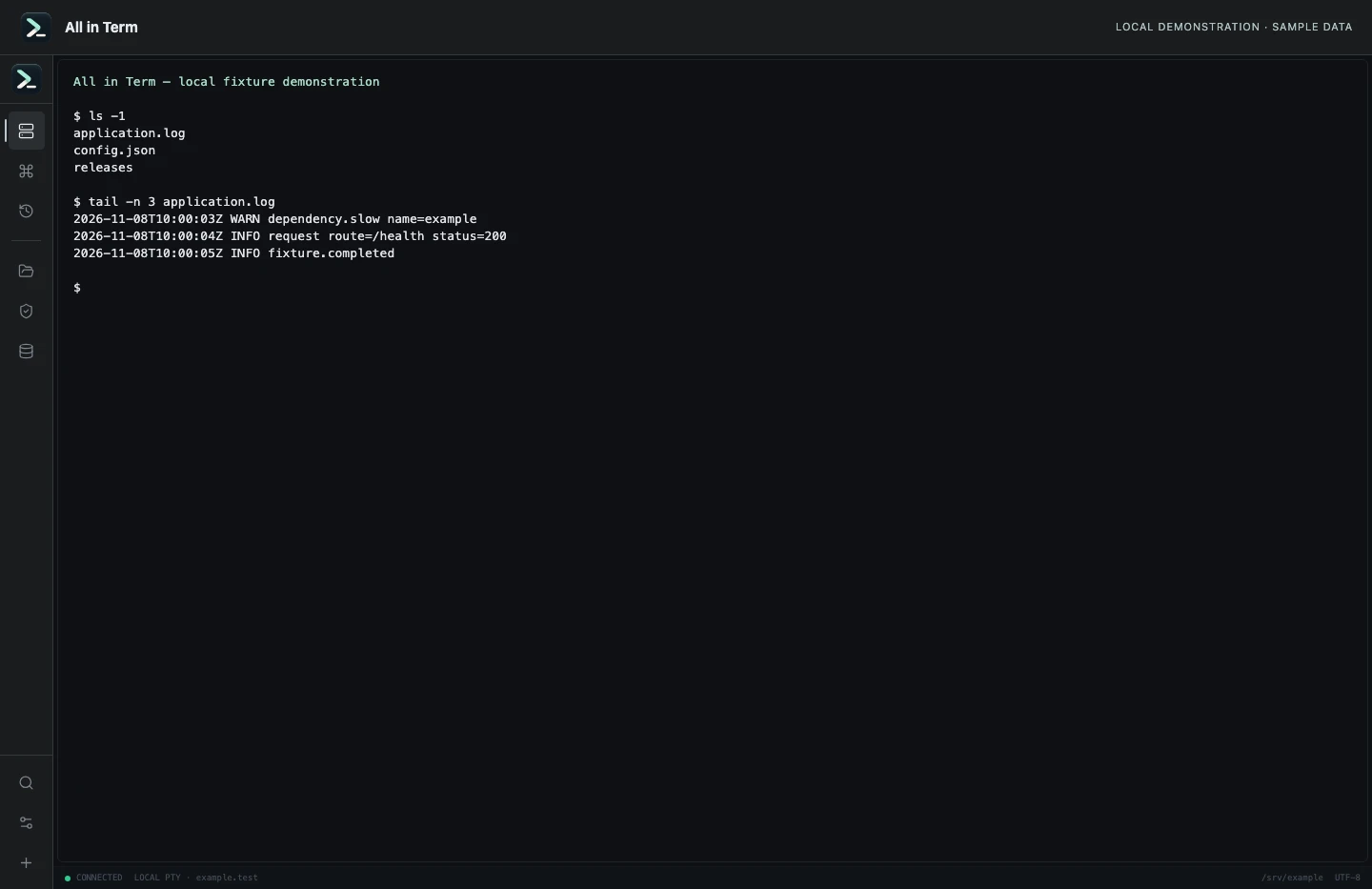
Local terminal view with command output recorded from an isolated temporary directory. Captured 2026-11-08. Open the image to inspect details.
List an isolated example directory
Executed /bin/ls against a newly created temporary directory.
Executed check
ls -1Recorded output
application.log
config.json
releases
Recorded 2026-11-08. Executed locally against synthetic fixtures. No production host or database was contacted. Read the recorded checks.
A small command example
Read the comments, confirm the active host and adapt any example names to your environment before running commands.
# GNU/Linux read-only examples; paths must match your host
# Filesystem containing the intended application path
df -h /var
# Inode availability is a separate filesystem check
df -i /var
# Scope directory traversal deliberately; it can create I/O load
du -sh /var/log
Further reading
Official documentation for the underlying tools. The workflows and synthetic examples above are editorial guidance, not performance claims.