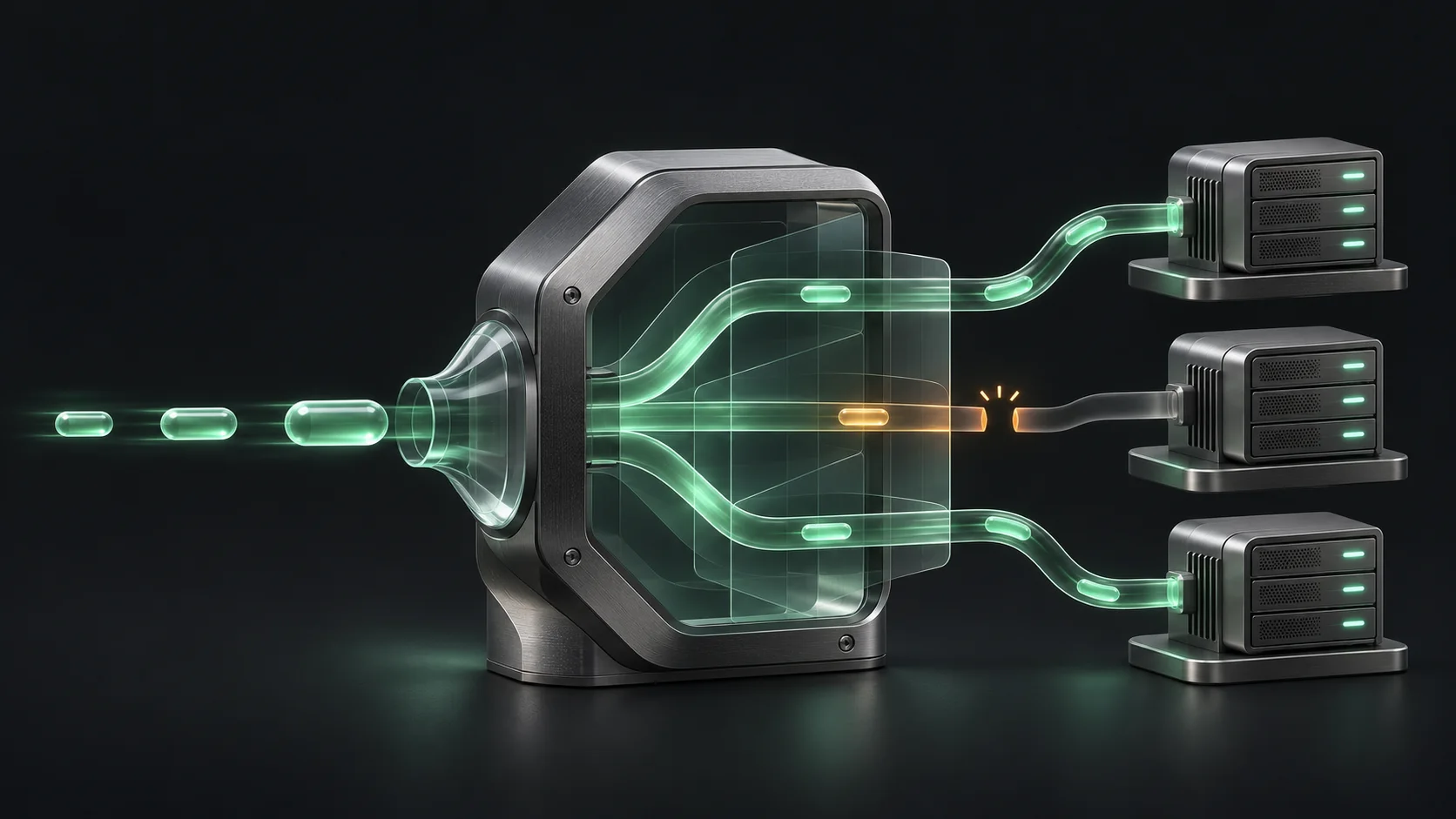
Troubleshoot Docker Compose from your Mac without restarting everything
Follow a failing request through containers, logs, configuration and dependencies before choosing a targeted recovery action.
A container marked running can still belong to an application that cannot serve a useful response. The web process might be waiting for a database, a worker might be processing the wrong queue, or a newly deployed image might be reading an unexpected configuration. Restarting every service can briefly change the symptoms while removing the evidence you needed to explain them. This guide develops a more deliberate Docker Compose investigation from a Mac. It uses a fictional web, worker and database stack, with commands to review before running against your own environment. The accompanying graph contains synthetic planning data, not a performance benchmark.
Name the service and the failure before opening the controls
Start with the behavior a user or another system actually observes. A product page might return an error, a queue might stop draining, or a scheduled export might never arrive. Record the hostname, time and recent deployment before examining the stack. These details keep the investigation tied to a service outcome. Without them, an unfamiliar container warning can attract attention even when it has no relationship to the reported failure.
Connect to the intended host in All in Term and confirm its identity. Open the Docker workspace to inspect containers, then identify the Compose project associated with the application. Similar service names can exist in several projects on the same machine. Treat a project name, file path and environment label as part of the identity you need to preserve throughout the investigation. A familiar container name alone is not a sufficient reason to restart it.
Follow one failing service through the stack.
- 01
Symptom
Name the failed user operation.
- 02
Container
Inspect state and relevant logs.
- 03
Dependency
Check configuration and reachability.
- 04
Verify
Repeat the original operation.
Conceptual workflow · follow each check before moving to the next step.
Separate container state from application readiness
Container state answers a limited question about a process and its lifecycle. Application readiness asks whether that process can do useful work for its callers. An application might start before a dependency is ready, or it might remain alive while every database request fails. Inspect the relevant readiness evidence rather than interpreting a running label as a complete health report. A configured health check is useful only when its test reflects the behavior you actually need.
For the fictional stack, first inspect the web service and then its dependencies. If a worker remains healthy while the web process fails, that difference may help narrow the scope. Avoid assuming that all dependencies should be restarted together. Capture the observed states and their timestamps so you can compare them after a targeted change. A recovery decision becomes easier to assess when the before state is documented instead of remembered.
| Observation | Investigate | Do not infer |
|---|---|---|
| Container is running | Application readiness and useful responses | The service is fully healthy |
| Repeated connection errors | Endpoint, credentials and dependency state | Every container needs restarting |
| Failure after deployment | Resolved configuration and image context | The old data must be removed |
| Worker backlog grows | Worker logs and dependency behavior | The web service caused it |
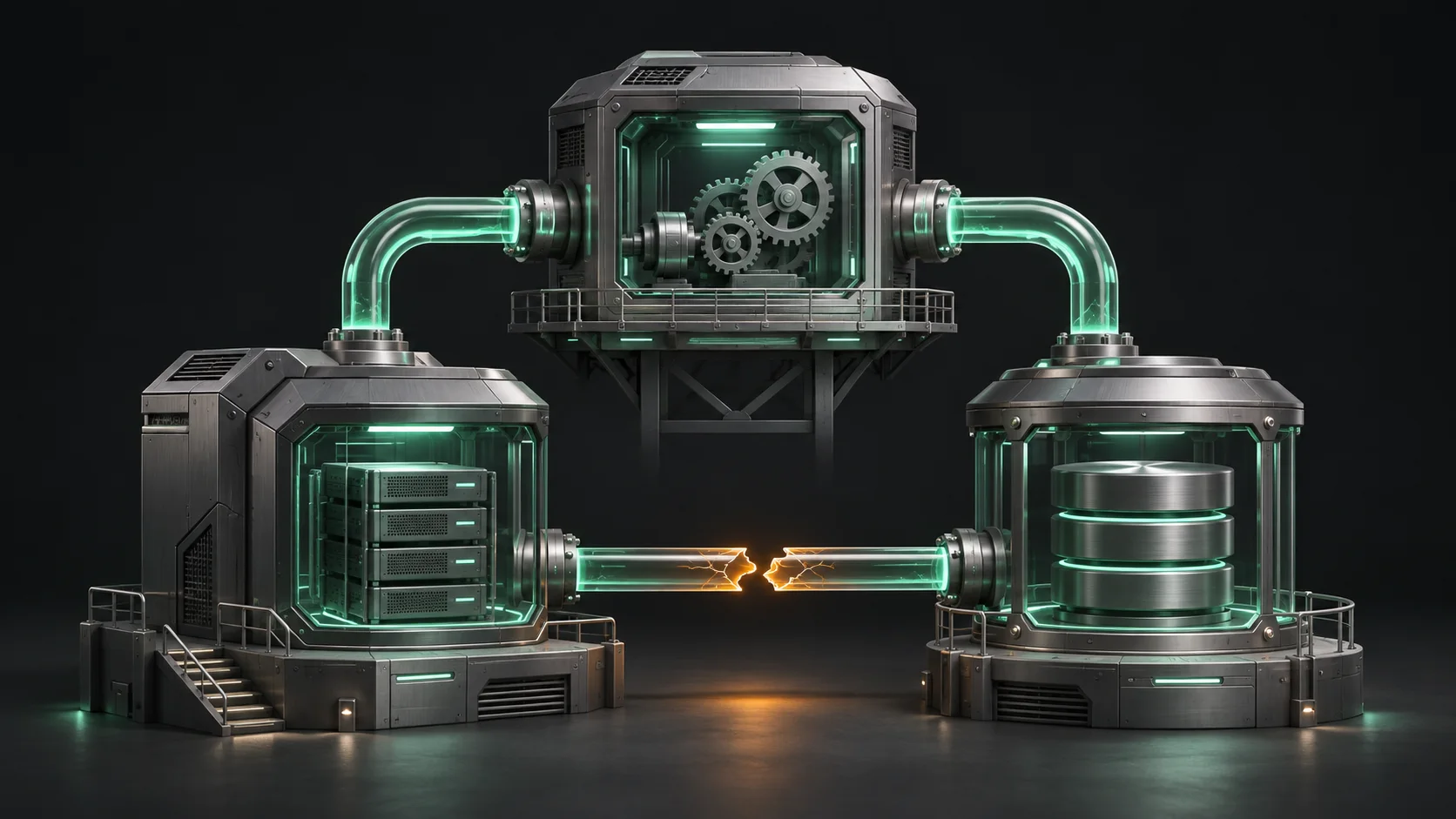
Inspect the relationship before restarting the stack.
The modules represent separate services. One interrupted path shows why a single failing dependency does not imply that every container needs a restart.
Scope the failure
Compare the affected service with its actual dependencies and preserve the timing of the symptom.
Verify useful work
A running container is lifecycle evidence. Repeat the application's original operation after any justified recovery action.
Read a bounded slice of logs around the event
Choose a relevant log window instead of collecting every message the service has ever produced. Include enough time before the failure to see a startup sequence or configuration warning, and enough time afterward to identify repetition. Keep the service name and timestamps visible when reading output from multiple containers. Similar messages can come from separate attempts, and the ordering of interleaved output should not become an unsupported causal story.
Record a few representative messages and connect them to the original symptom. A repeated connection failure may suggest a wrong endpoint or an unavailable dependency; it does not establish which one without another check. Redact tokens, personal data and connection secrets before sharing output. In All in Term, use the connected terminal for a narrowly scoped command when you need a more specific log selection than the current visual view provides.
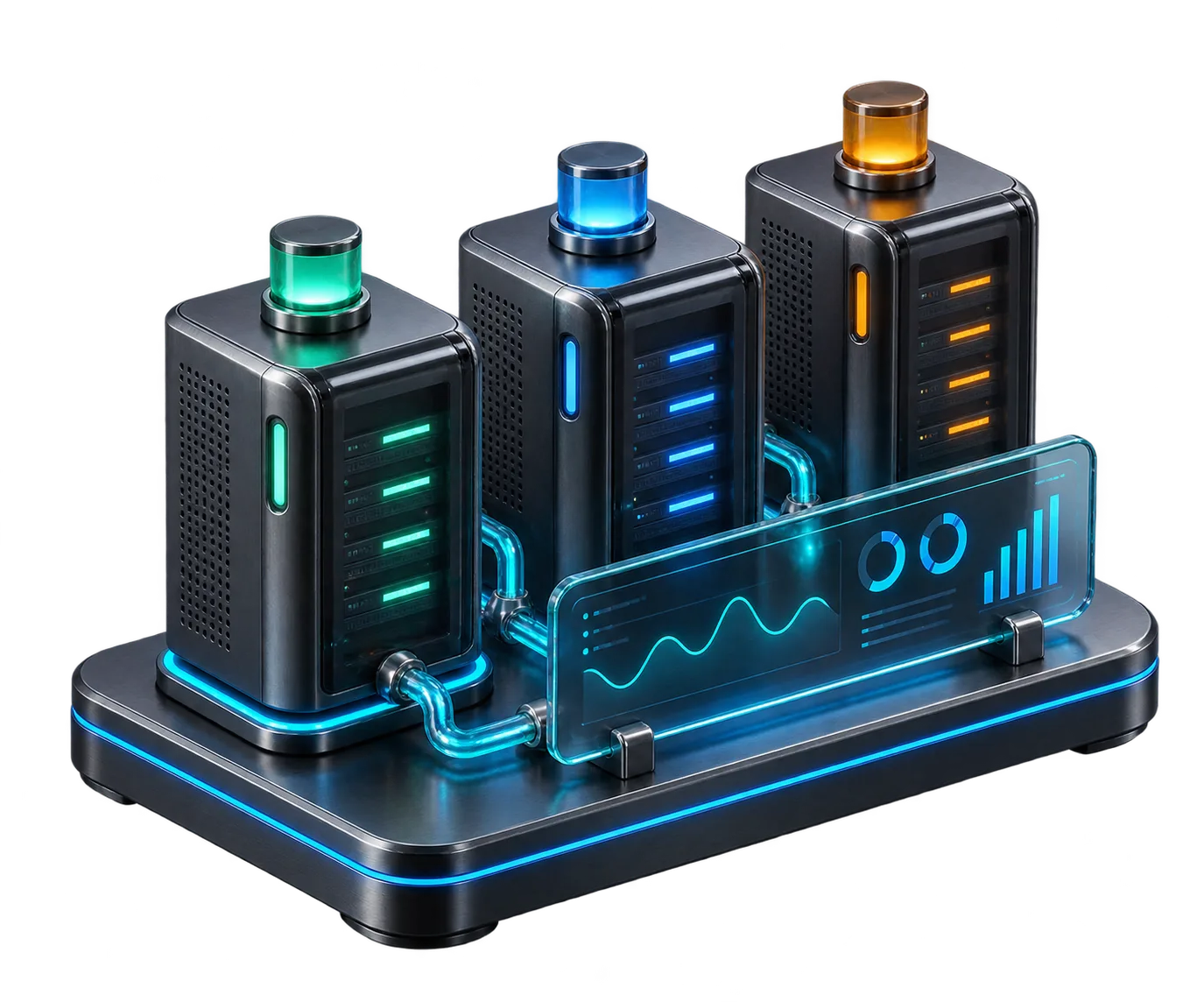
A running process is one piece of evidence.
Keep container lifecycle state separate from the application's ability to serve useful work.
Concept illustration, not an application screenshot.Compare the intended configuration with the resolved model
A Compose file is one part of an application's configuration context. Overrides, variables and the command's working directory can influence what is applied. Review the actual project files and intended environment before editing a setting. A value that appears correct in one file may be superseded elsewhere. Keep a copy of the relevant configuration through your normal versioning process so that a proposed change can be reviewed and reversed.
The Compose configuration command can help inspect the resolved model, but its output may expose sensitive resolved values. Use a validation-only invocation when that is all you need, and inspect expanded output privately when investigation requires it. Then compare the application endpoint with the dependency's actual address and network context. Do not assume a host loopback address points to another container. Write down which component connects to which endpoint before changing the value.
Planned attention in a fictional container investigation
Unit: minutes allocated. Synthetic example values, not production measurements.
Bars start at zero and share the same linear scale. Exact values are printed alongside each bar.
Check storage and dependencies before recreating anything
Before a lifecycle action, identify where durable application data lives. A disposable container process and persistent database storage have very different roles, even if both appear in the same project definition. Inspect mounts and ownership through your established operating procedure. Confirm that backups are usable and understand the consequences of the intended command. Removing persistent data to solve a process problem creates a different and often much larger incident.
Also check whether a dependency is actually available from the application environment. A database can be healthy on its own while the application uses the wrong user, database name or network endpoint. Compare the relevant settings with a known working environment without copying production credentials into shared notes. The goal is to identify one broken relationship. Changing several unrelated services at once makes it harder to discover which condition mattered.
Choose the smallest justified recovery action
Suppose the evidence shows that only the web service reads an incorrect endpoint from a recent configuration change. Correcting that setting and applying the appropriate scoped deployment may be justified. Before doing so, describe the expected impact, what should remain available and how you will recognize failure. Coordinate changes to shared infrastructure through the process your team already uses. A compact recovery plan is useful even for a service that appears simple.
After the action, repeat the original request and inspect fresh logs. Check dependencies and downstream behavior rather than stopping at a successful container start. If the symptom persists, return to the evidence and revise the hypothesis. Repeating the same restart without learning anything is unlikely to improve the investigation. Preserve the results of each attempted change so the next operator does not unknowingly repeat an unsuccessful step.
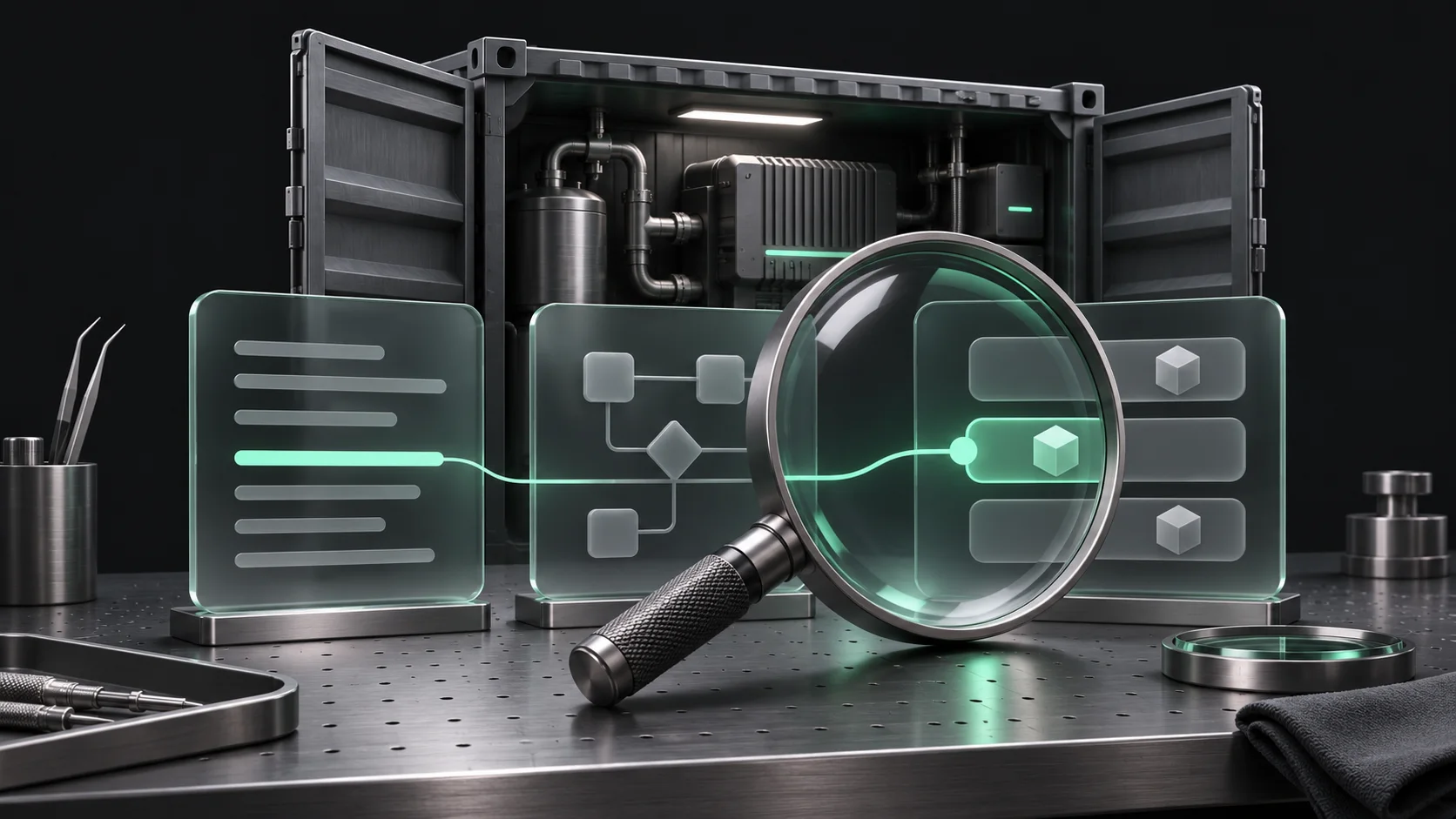
Combine logs, configuration and service context.
The lens illustrates a focused investigation that connects a message to the service configuration and endpoint involved.
Read a bounded window
Choose logs around the incident rather than collecting unrelated historical output.
Check the resolved model
Review the intended project and relevant configuration privately; expanded values can include secrets.
Leave a runbook that explains the reasoning
A useful runbook names the project, the relevant files, the affected service and the observations that distinguish common failure modes. Include bounded read-only commands and explain what their output is meant to reveal. Avoid turning the runbook into a long list of restart commands. The most valuable guidance often describes when an action is appropriate and which result should be checked afterward.
Use snippets for reusable observations, and keep credentials and environment-specific secrets outside them. All in Term brings container inspection, Compose files, logs and a terminal into the same host context. That makes it easier to follow a hypothesis across views, but the operational decision still depends on evidence. A calm container workflow starts with the user's symptom, follows the dependency that matters and finishes by demonstrating that the service can perform its intended job again.
Inside the application: a scoped local example
This capture uses the shipped UI component in an isolated renderer. The host, files and service data are demonstrations, not a production session. It illustrates the surrounding workflow; it does not verify every service-specific command in this guide.
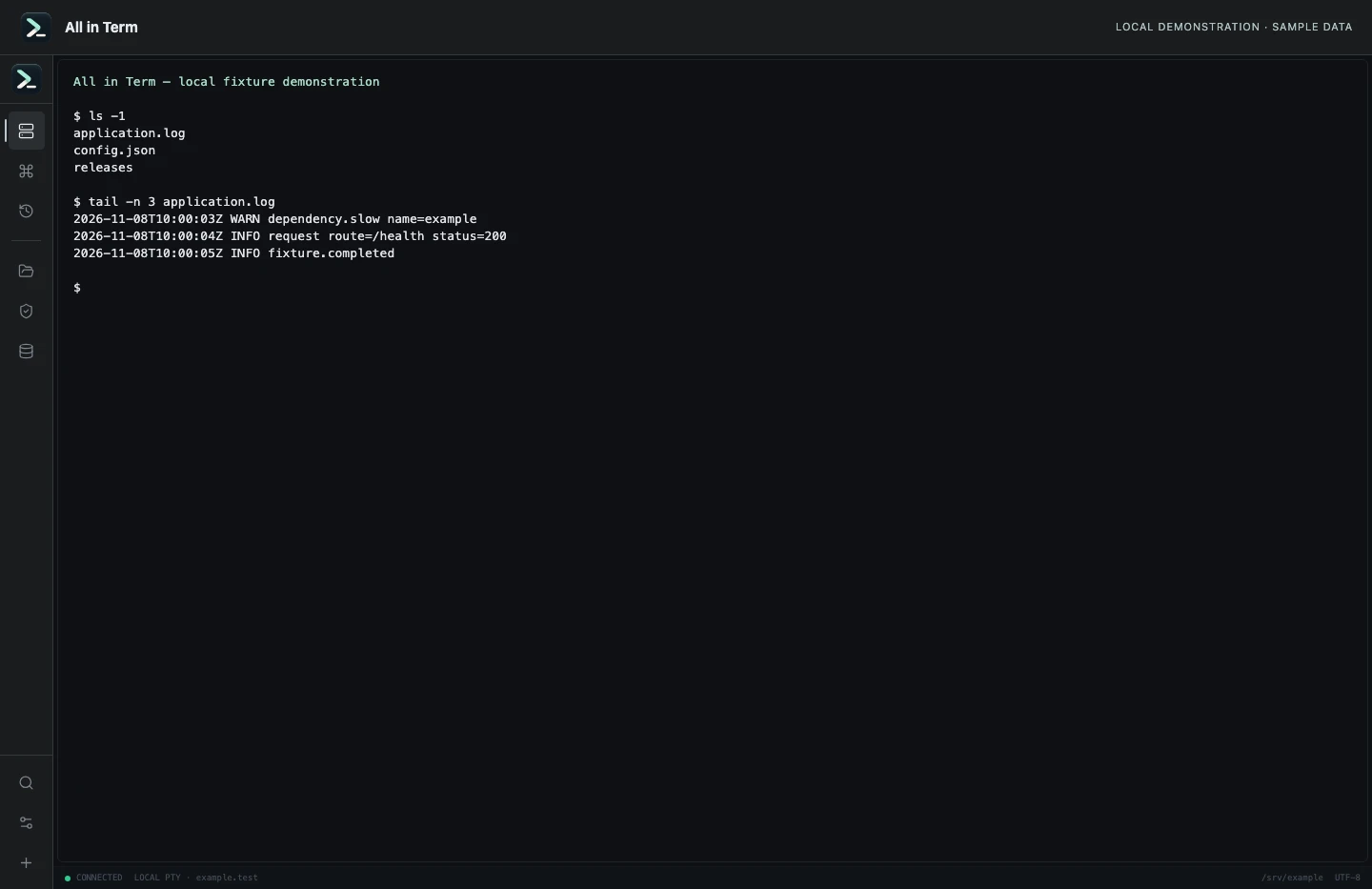
Local terminal view with command output recorded from an isolated temporary directory. Captured 2026-11-08. Open the image to inspect details.
List an isolated example directory
Executed /bin/ls against a newly created temporary directory.
Executed check
ls -1Recorded output
application.log
config.json
releases
Recorded 2026-11-08. Executed locally against synthetic fixtures. No production host or database was contacted. Read the recorded checks.
A small command example
Read the comments, confirm the active host and adapt any example names to your environment before running commands.
# Run in the intended Compose project directory
# Read-only inspection; review logs for sensitive values
docker compose ps
docker compose logs --tail 50 --timestamps web
docker compose config --quiet
Further reading
Official documentation for the underlying tools. The workflows and synthetic examples above are editorial guidance, not performance claims.