Compare Two Folders on Mac Before Syncing or Deploying
Compare two folders on Mac with diff or rsync dry run. Review local and remote file differences before syncing or deploying over SSH.
A folder comparison should answer what changed, which copy holds the desired version and what will happen if you transfer it. Use a simple local diff to learn how paths and content are reported, an rsync preview to inspect a proposed copy and a visual review when a remote release needs human judgment. The workflow below starts read-only and leaves transfers to a separate decision.
Decide what equality means for this task
Two trees can have the same filenames and still hold different data. Timestamp differences can come from copying or rebuilding a file. Ownership, permissions and symlink targets may matter when comparing a release, while the contents of two text configuration files may matter more than their timestamps. Pick the dimensions you need before choosing a tool. Record the roots explicitly. If an unexpected nested directory appears, you can trace it back to the paths you selected.
A useful local fixture includes a matching file, a changed file and a file that exists on only one side. Put the changed pair under the same subdirectory in both trees and record the differences before running your command. That gives you an answer key. If you see an entire directory reported on each side, check that the roots represent the same level. A deliberate fixture also helps you learn how hidden files or symlinks behave before you compare a large project.
Choose a check for the task
- 01
diff -rq
Read-only directory report
- 02
rsync dry run
Preview the proposed update
- 03
All in Term folder comparison
Inspect differences before choosing a transfer
Conceptual workflow · follow each check before moving to the next step.
Compare local content with diff
Use diff -rq to report differences between two local directory trees. The short output is useful for finding candidates, then a focused diff -u can show how one pair of text files differs. Pay attention to files that exist only on one side. A changed configuration might be accompanied by a new required asset. An exit status of one indicates differences for diff, while higher statuses indicate trouble. Treat errors separately from a valid report of changes.
For individual text files, inspect the context around changed lines. A unified diff marks removed and added content relative to operand order. Confirm which version is first before inferring that a setting was added by a particular person or deployment. A binary asset may be reported as different without a readable line-level explanation. In that case, compare a digest, artifact metadata or the application behavior that depends on it. Preserve the original file if you need to reproduce the result.
| Option or symptom | What to look for | Where to start |
|---|---|---|
| diff -rq | Which local files differ? | Read-only directory report |
| rsync dry run | What would this copy attempt? | Preview the proposed update |
| All in Term folder comparison | Which remote changes should I review? | Inspect differences before choosing a transfer |
Directory trees side by side
Check both folder roots before comparing their relative paths.
Workflow
Read-only directory report
Preview what rsync would copy
A dry run with itemized changes answers a different question: what would this particular rsync command do? Read the source and destination direction, then inspect the trailing slash and any filters before using the result. Quick checks commonly use size and modification time. If an exact comparison matters, use a suitable checksum check and account for extra reads. Keep deletion rules out of a first preview so you can learn what changes an additive transfer would propose.
A remote review can become stale while you are looking at it. Generated assets could change during a build, or another person could push to the same staging path. When that is possible, compare immutable artifacts or pause concurrent changes through your normal release process. Record when the comparison ran. If a file has changed since then, repeat the narrow check before you transfer it. A folder view helps identify candidates while the release process determines when a candidate is ready to move.
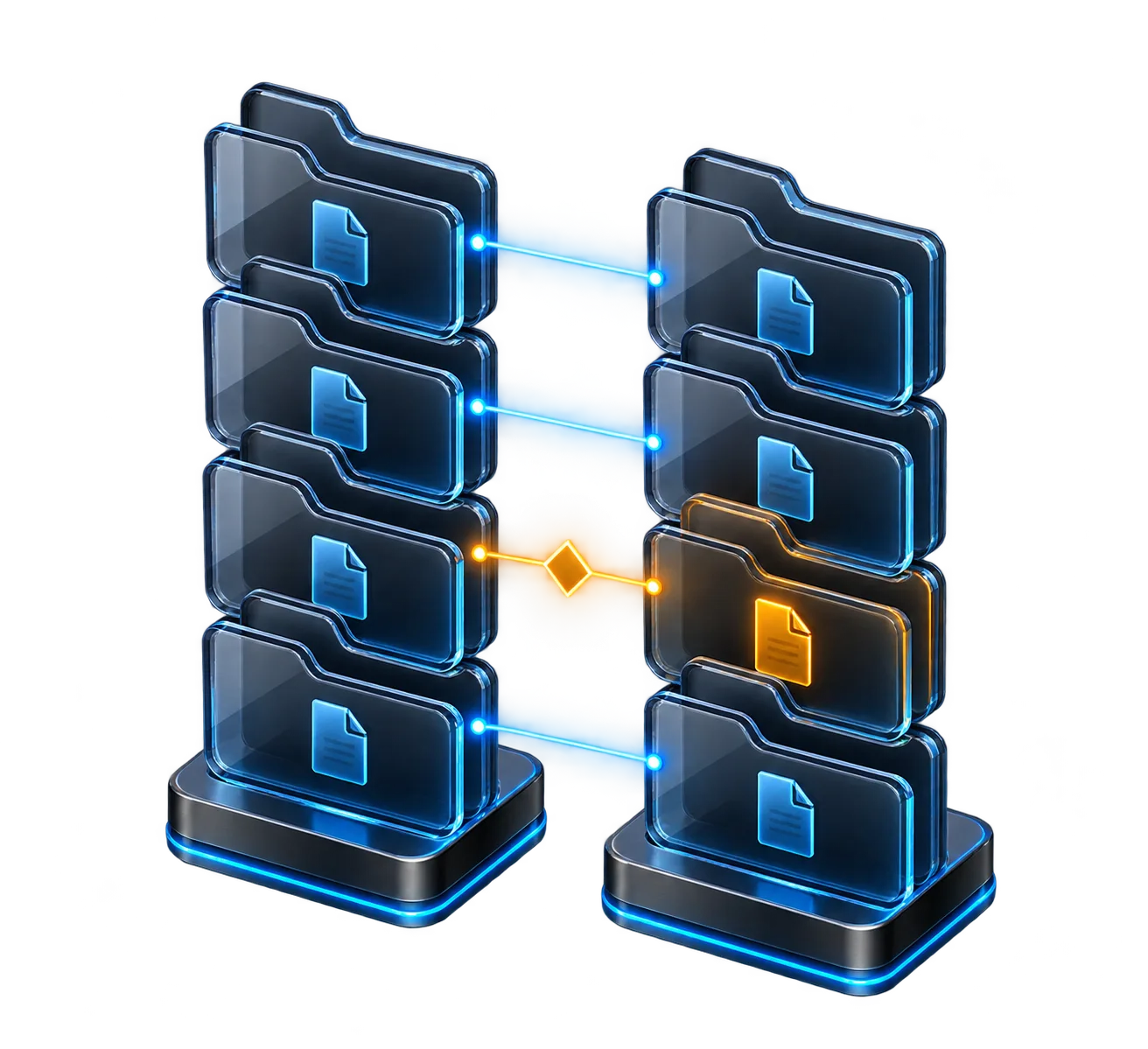
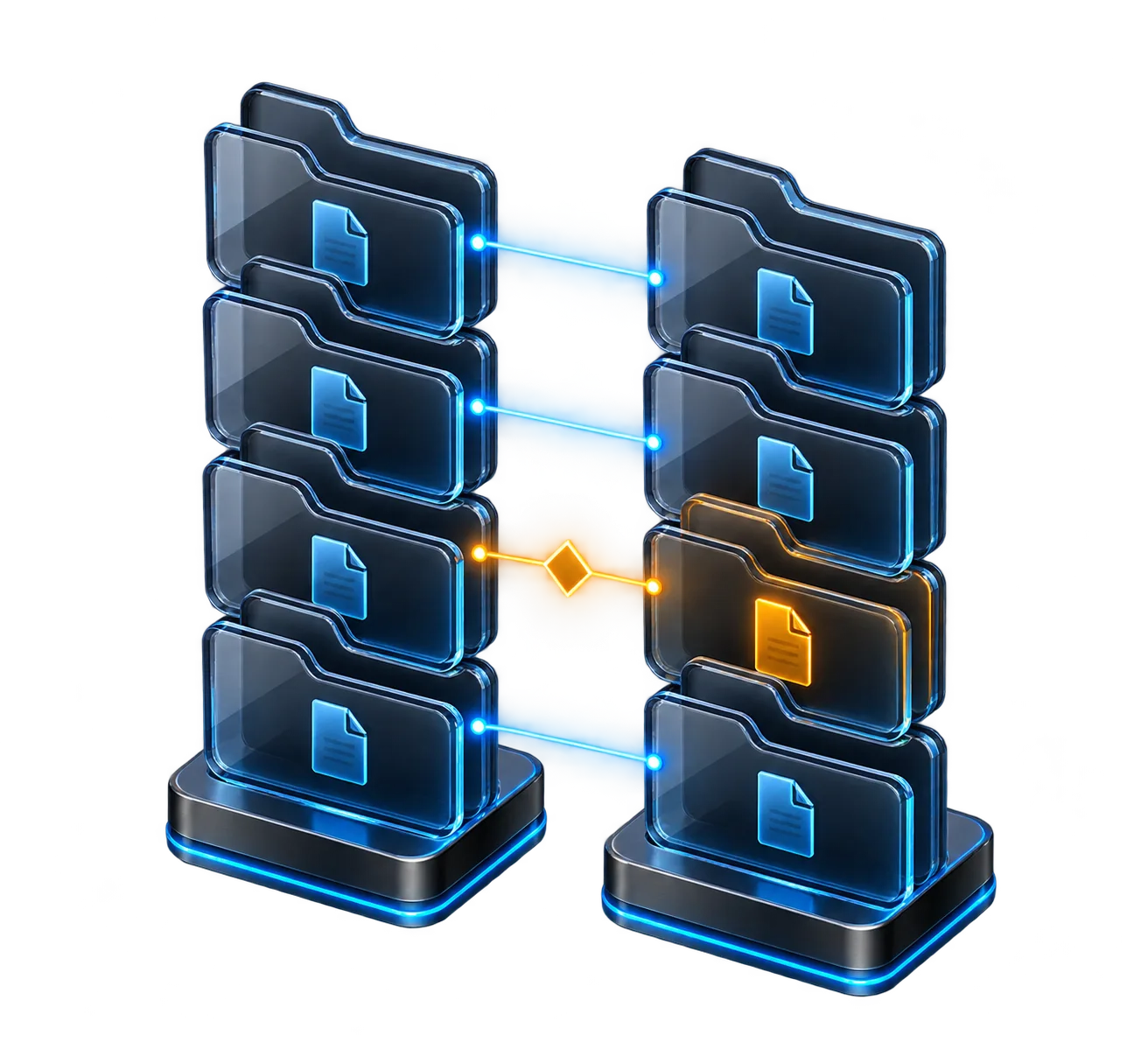
Directory trees side by side
Check both folder roots before comparing their relative paths.
Concept illustration, not an application screenshot.Compare the sample counts
The chart uses a fictional eighteen-file review. Twelve files match, three differ and three exist on just one side. A file that exists only on the remote server may hold environment configuration, generated content or operational data. It needs an owner and a reason before it becomes a transfer or deletion candidate. The counts guide the review order. The text diff and deployment intent guide the actual decision.
Six of the eighteen paths require review in the sample, about one third of the tree. Three need a content comparison and three need a decision about whether they belong on the other side. The count gives you an estimate of review scope before any transfer.
Differences in a sample 18-file review
Unit: files. Synthetic example values, not production measurements.
Bars start at zero and share the same linear scale. Exact values are printed alongside each bar.
A change between two versions
Inspect a focused text diff before choosing a transfer direction.
Workflow
Preview the proposed update
Review a remote folder in its host context
When a staging copy lives across SSH, confirm the server and full remote path first. In All in Term, review the folder differences and open the relevant file comparison before choosing a transfer direction. Keep backups and rollback procedures appropriate to your release process. A visual comparison is most useful when you can relate a highlighted change to the application behavior you expect. Use a narrow example such as a single changed setting and one added asset.
If you plan to turn this procedure into a script, preserve the distinction between a difference and an execution error. Log the roots and filter choices, make the output easy to inspect, and choose a fixture that contains the names you see at work, including spaces if appropriate. A readable check should answer which files differ and in what direction a future transfer would go. Use chart totals to decide how large the review is, then use the exact file names to decide what belongs in the release.
Verify after an approved change
Suppose a release includes a changed configuration and a new logo, while the destination contains a server-only environment file. Mark all three paths before choosing a direction. Confirm that your local configuration refers to the intended environment, then inspect the logo separately as a binary artifact. Leave the destination environment file under the policy that governs it. A report that highlights three differences is a starting point for three independent decisions. A release reviewer should be able to tell which two paths were approved and why the third belongs to the server. After moving the approved files, open the served asset or repeat the relevant request. Save the observed path and result next to the release note so someone reviewing it later can distinguish a successful copy from a fully verified deployment.
Check the resulting path and data after the transfer. If the application has cached or loaded the previous file, run the approved check that confirms which version it now uses. Consider whether a report of differences should exclude logs or transient runtime content in future runs. Download All in Term to try the same review against a staging folder if switching between local files, a terminal and a remote browser breaks your concentration during releases.

A release file reaching staging
Verify the released file at the intended staging destination.
Workflow
Inspect differences before choosing a transfer
Inside the application: a scoped local example
This capture uses the shipped UI component in an isolated renderer. The host, files and service data are demonstrations, not a production session. It illustrates the surrounding workflow; it does not verify every service-specific command in this guide.
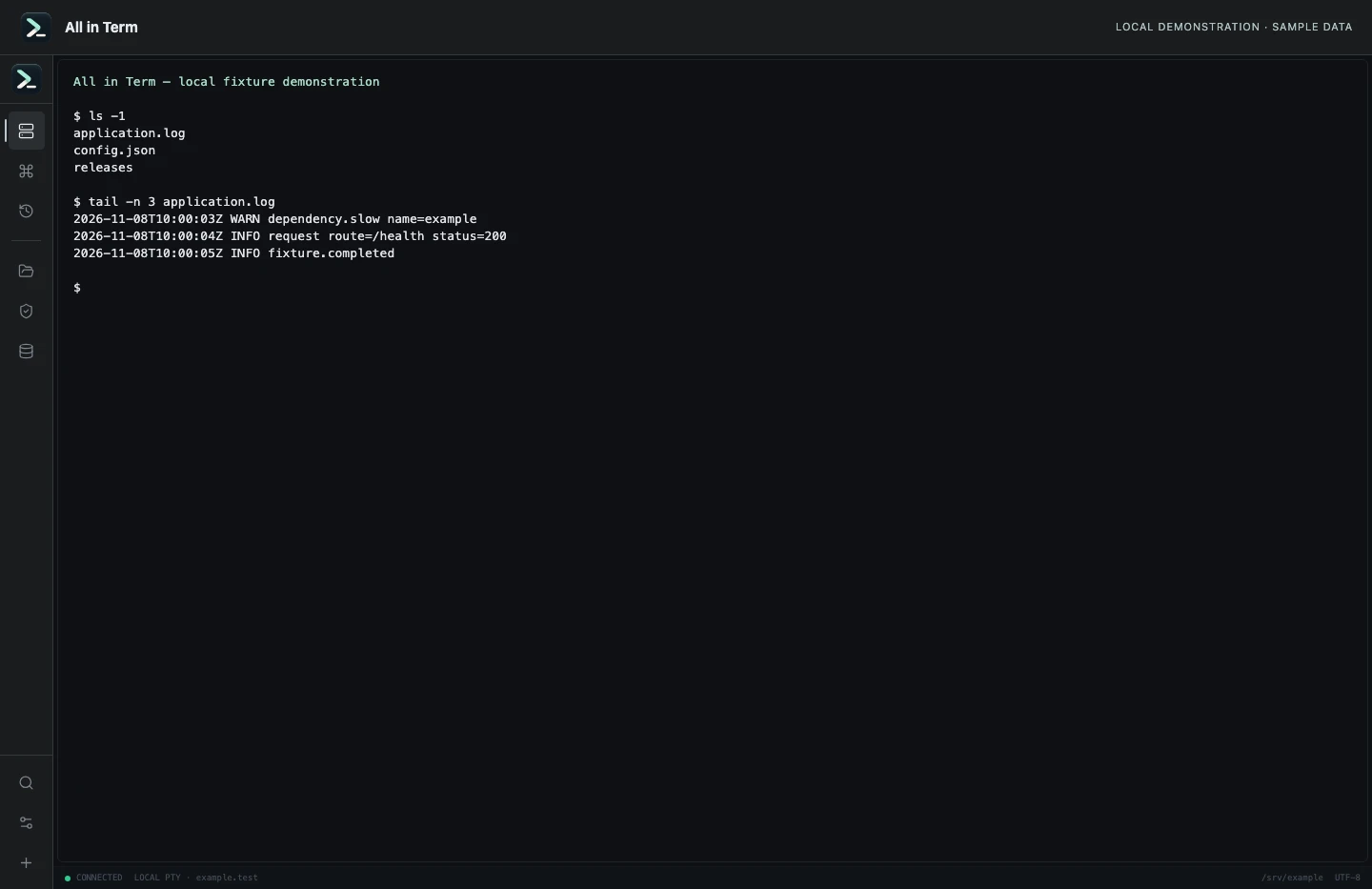
Local terminal view with command output recorded from an isolated temporary directory. Captured 2026-11-08. Open the image to inspect details.
List an isolated example directory
Executed /bin/ls against a newly created temporary directory.
Executed check
ls -1Recorded output
application.log
config.json
releases
Recorded 2026-11-08. Executed locally against synthetic fixtures. No production host or database was contacted. Read the recorded checks.
A small command example
Read the comments, confirm the active host and adapt any example names to your environment before running commands.
diff -rq ./local-copy ./staging-copy
diff -u ./local-copy/config.txt ./staging-copy/config.txt
rsync -rtni ./local-copy/ ./staging-copy/
Further reading
Official documentation for the underlying tools. The workflows and synthetic examples above are editorial guidance, not performance claims.